
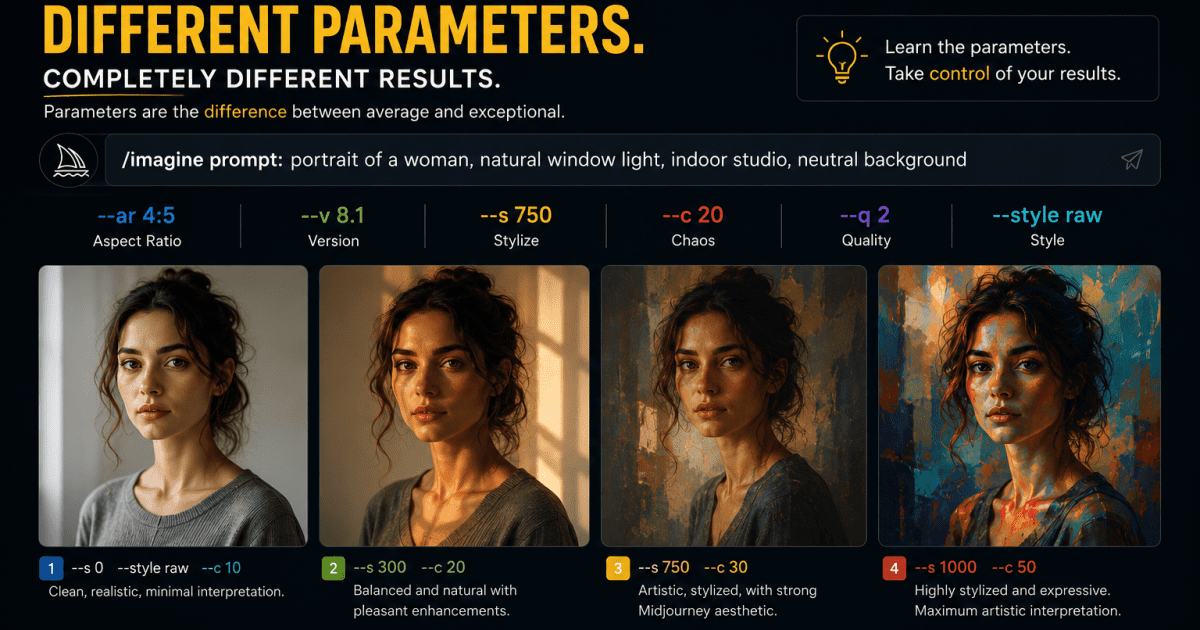
I have used the same portrait prompt with four completely different parameter combinations and generated four images that looked like they came from four different photographers working in four different visual traditions. One looked like editorial fashion photography.
One looked like a raw documentary portrait. One was a heavily stylised artistic interpretation. One was a clean commercial headshot. Same words, same subject, same lighting description. Only the parameters changed.
If you have been using Midjourney without fully understanding its advanced parameters, this guide is the complete reference you need: every parameter worth knowing in 2026, what it does, which values work best, and the combinations that consistently produce professional results, including which ones still work on the current model and which are now legacy-only.
Midjourney Advanced Parameters List: Quick Reference (2026)
Here is the complete Midjourney advanced parameters list at a glance. Each one gets full detail further in this guide, but if you need a fast reference while working, bookmark this section and come back to it.
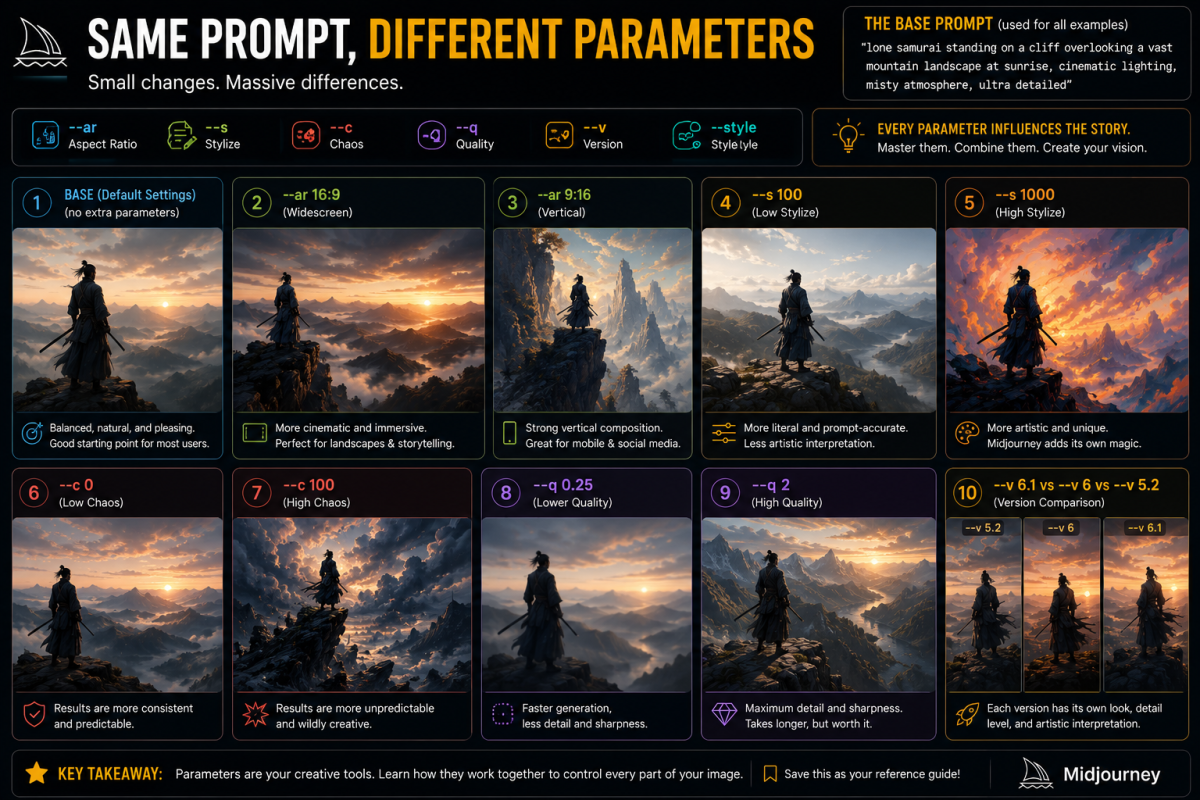
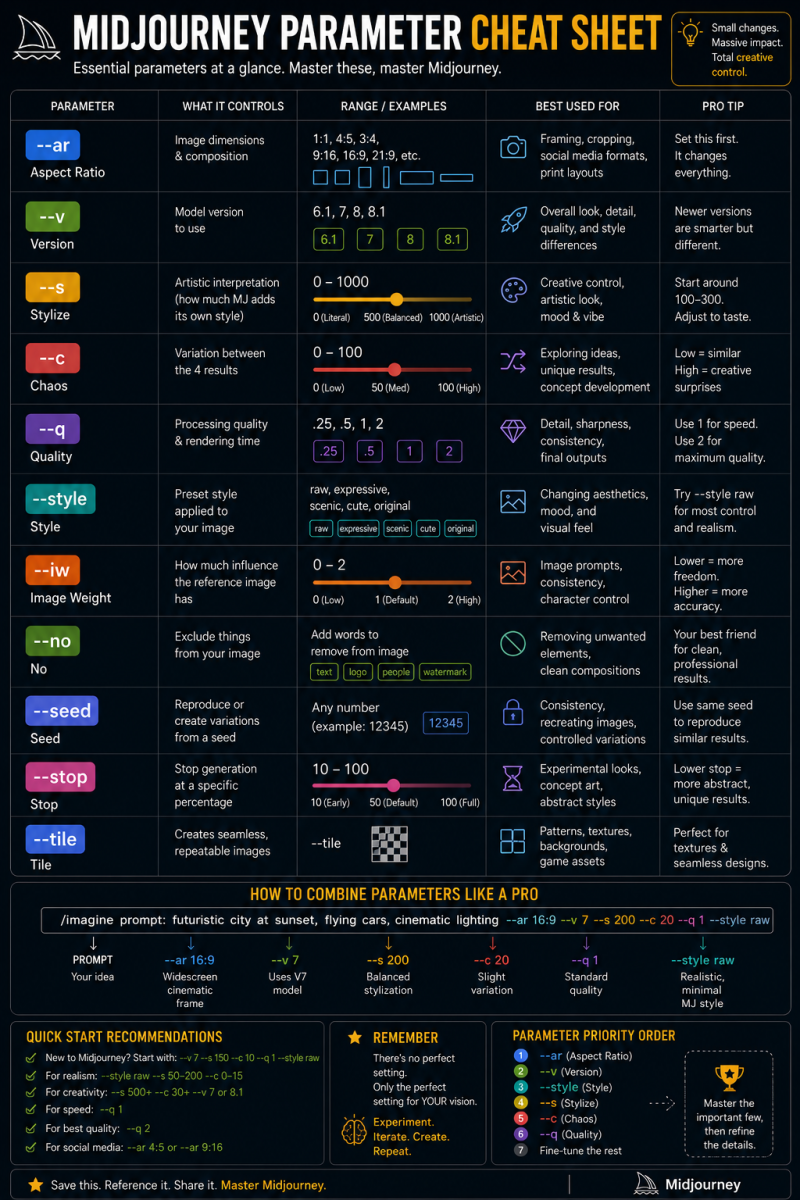
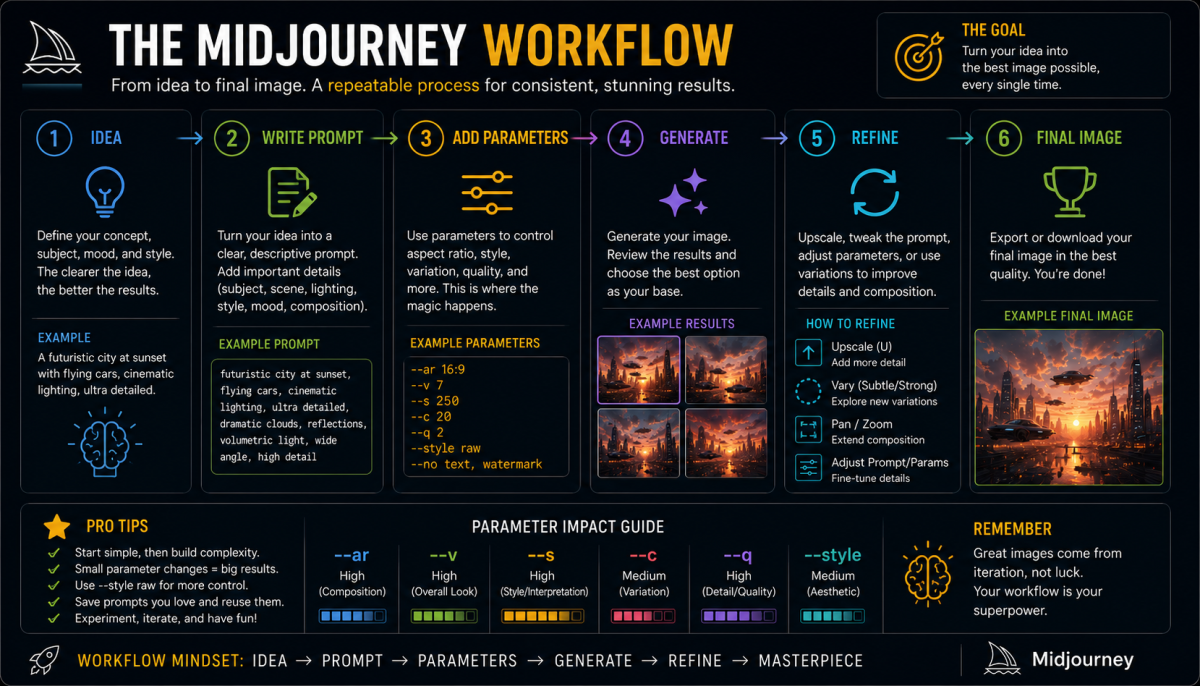
–ar (Aspect Ratio): Controls image dimensions. Common values: 1:1, 16:9, 9:16, 4:5, 21:9, 3:4. Set this first on every prompt. Standard images support up to 14:1, while HD images cap out at 4:1.
–v (Version): Selects the model. Current default is V8.2. Use –v 8.2 for the latest, –v 8.1 for the fastest predecessor, –v 7 for older prompt compatibility.
–s or –stylize (Artistic Interpretation): Range 0 to 1000. Low values, 0 to 100, give literal accuracy. Medium, 200 to 400, gives balanced output. High, 600 to 1000, pushes maximum artistic expression.
–c or –chaos (Variation): Range 0 to 100. Low values produce similar results, high values produce wildly varied outputs. Start high when exploring, then reduce it as you refine.
–q or –quality (Render Detail): A legacy parameter available on V6, V6.1, and V7 only. It does nothing on V8.1 or V8.2, so this flag has no effect if you are on the current default model.
–no (Negative Prompt): Excludes unwanted elements. Example: –no text, logos, watermarks, people. Commas separate multiple exclusions.
Continues Parameters List
–hd (Native 2K Resolution): Available on V8.1 and V8.2. Generates at 2048px natively without upscaling. Costs 1.3 minutes of GPU time versus 0.8 minutes for standard definition. Use it for final production images.
–sd (Standard Definition): An explicit SD flag for when HD is set as your default in settings. Use it during exploration to save GPU time.
–raw (Minimal Style Interpretation): Removes Midjourney’s default aesthetic enhancement. Best for photorealistic and commercial work where accuracy matters most.
–niji 7 (Anime Mode): A separate model family rather than a flag added to –v, so it replaces your version selection instead of combining with V8.1 or V8.2. It launched January 9, 2026, and suits anime aesthetics, manga illustration, and Japanese visual styles best.
–seed (Reproducible Results): Forces generation from a specific noise starting point, which gives you consistent, comparable results across prompt variations. On V8.1 and V8.2, matching seeds now produce results that are around 99 percent identical rather than pixel-perfect matches.
–stop (Partial Rendering): Halts generation at a specified percentage, 10 to 100, for intentionally impressionistic or sketch-like output.
–tile (Seamless Pattern): Generates images that repeat infinitely without visible seams. Use it for backgrounds, textiles, wallpapers, and surface textures.
–weird or –w (Experimental Aesthetics): Introduces intentional visual strangeness. Low values add subtle unexpectedness, high values produce surreal, unconventional output.
–sref (Style Reference): Upload an image URL to apply its visual aesthetic, colour palette, and lighting approach to your generation.
–cref (Character Reference): A legacy parameter available on V6 only. V7 replaced it with Omni Reference, and neither one is available on V8.1 or V8.2.
Prompt Weighting
(Prompt Weighting): A legacy multi-prompting feature available on V6 and V7 only, not supported on V8.1 or V8.2. It assigns relative importance to specific elements; for example, “Nigerian market::2 sunset::1” gives twice the compositional weight to the market.
Now let us go through each one in full detail: what it actually does, the values that work best, and exactly when to use it. If you want copy-paste prompt structures to pair with these parameters, the Midjourney prompts guide covers the natural language side in depth.
Why Midjourney Parameters Matter More Than Your Prompt Words
A Midjourney prompt has two distinct parts. The natural language description, the words that describe your subject, environment, lighting, mood, and style, tells the model what to create. The parameters at the end of that description tell it how to create it: the technical specifications, the quality settings, the dimensional format, and the degree of artistic interpretation versus literal accuracy.
Most beginner guides focus almost entirely on the first part and treat parameters as an afterthought. Experienced Midjourney users actually work the opposite way.
The natural language description determines the content, while the parameters determine whether that content renders as a square social post or a widescreen cinematic image, whether it looks photorealistic or heavily stylised, whether the four results stay tightly similar or vary wildly, and whether it renders in standard or native 2K resolution.
Ignoring parameters is like buying a professional camera and only using auto mode. The tool can do far more than you are accessing, and closing that gap is entirely within your control. That is what this guide sets out to do.
–ar: The Most Important Midjourney Parameter on Every Advanced List
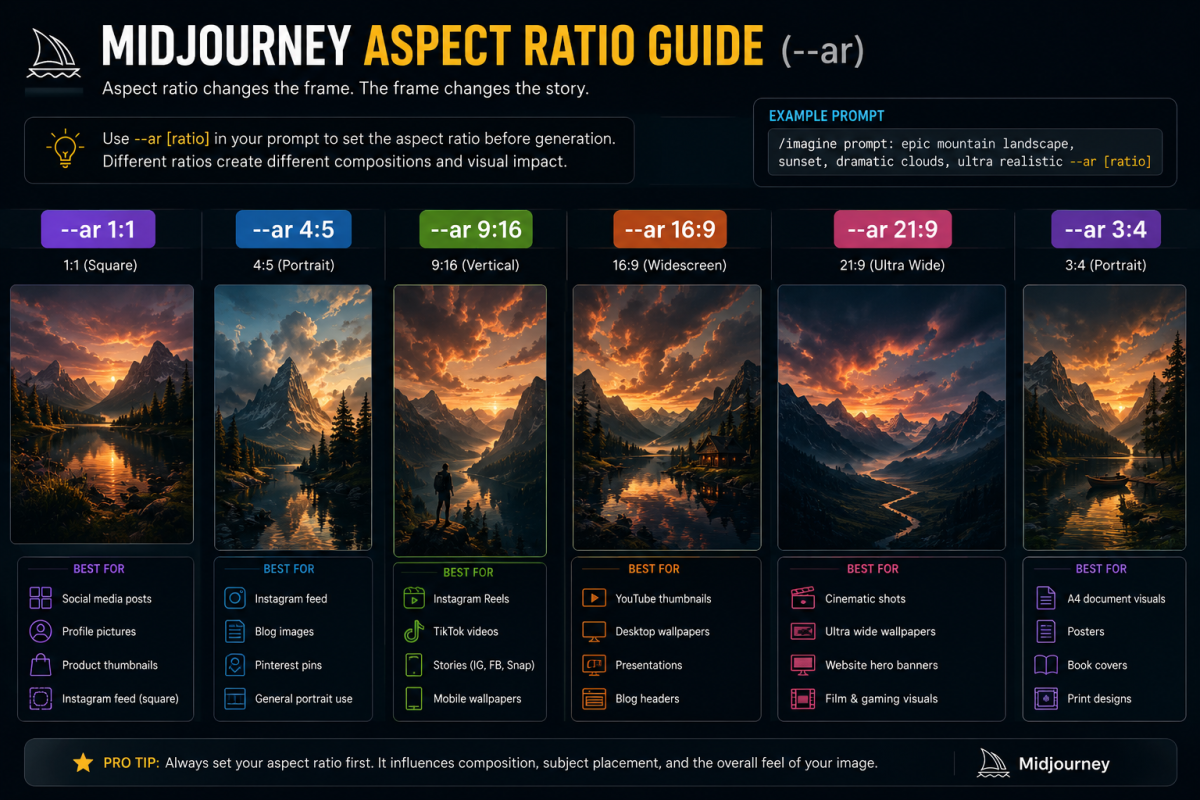
If you learn only one parameter from this entire guide, make it –ar. Aspect ratio is the single most impactful parameter in Midjourney, and beginners overlook it more consistently than any other. Skip –ar and every image you generate defaults to a square, 1:1, whether your intended use is a YouTube thumbnail, an Instagram story, a blog header, or a poster.
The reason –ar matters so much goes deeper than crop dimensions. Setting an aspect ratio before generation begins changes how Midjourney approaches composition at a fundamental level.
A 9:16 vertical image gets composed around a tall, narrow frame, so the model frames your subject differently, includes different amounts of background, and positions the visual weight of the scene to suit a tall format. A 21:9 cinematic widescreen image produces a completely different compositional approach even with an identical subject description.
One current limit worth knowing: standard images support aspect ratios up to 14:1, but generating in HD narrows that maximum to 4:1. Generate at standard definition first if you need an extreme widescreen or panoramic ratio.
The Aspect Ratios Worth Knowing
Use –ar 1:1 for social media square posts, profile images, and product thumbnails. YouTube thumbnails, desktop wallpapers, blog header images, and presentation slides call for –ar 16:9. Instagram Reels, TikTok content, Pinterest pins, and mobile wallpapers work best at –ar 9:16.
Instagram feed posts optimised for the grid layout want –ar 4:5. Cinematic, film-style, or ultra-wide compositions need –ar 21:9. A4 portrait documents, posters, and book covers work well at –ar 3:4.
Make setting –ar the first thing you add to every prompt before you think about any other parameter. It takes two seconds and changes everything about how Midjourney approaches the generation.
–v or –version: Choosing the Right Midjourney Model in 2026
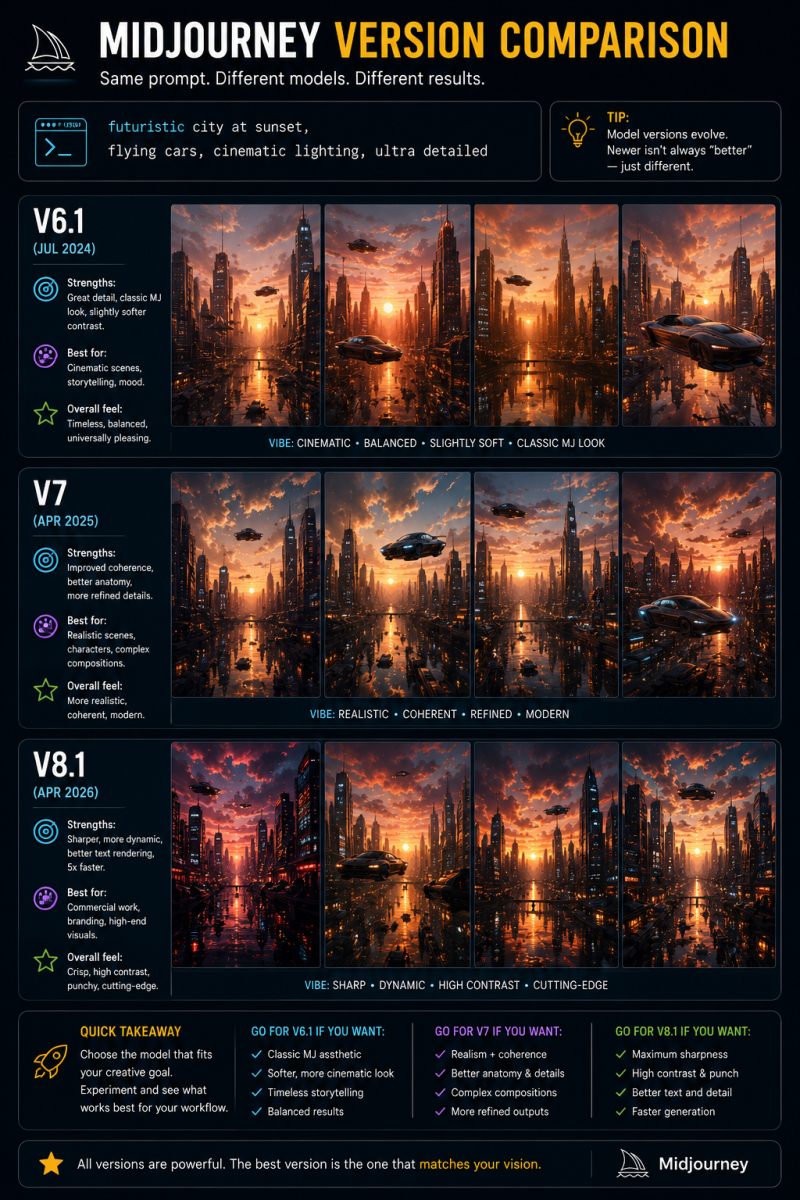
The version parameter tells Midjourney which model to use for your generation. This matters more than most guides acknowledge, because different versions carry genuinely different aesthetic qualities, strengths, and optimal prompt approaches. A prompt that works beautifully on one version may disappoint on another.
The Current Version Landscape in 2026
V8.2 is the current default, released July 24, 2026. Midjourney’s own documentation says this update focuses on aesthetics, image quality, and Personalization. V8.2 images read as more creative, bold, sophisticated, and edgy, and the Personalization system now reads your aesthetic taste more accurately, especially on profiles with a large number of rated images.
V8.1 released April 14, 2026 and held the default spot from June 10 to July 23, 2026, before V8.2 replaced it. It remains available and is Midjourney’s fastest model, rendering standard jobs roughly four to five times faster than earlier versions, following prompts more closely, and handling fine detail with improved accuracy. V8.1 introduced HD image generation at native 2K resolution through the –hd flag, a feature V8.2 also carries forward.
V8.0 was an early access alpha that launched March 17, 2026 on a separate alpha website. It fully retired on July 24, 2026, the same day V8.2 launched. Images generated under V8.0 still show up in your gallery, but the version itself no longer works.
The Previous Releases
V7 released April 3, 2025 and became the default model on June 17, 2025. It held that position until June 9, 2026, when V8.1 took over. V7 introduced Draft Mode, Omni Reference, and significantly improved handling of human anatomy, particularly hands and bodies, which had been a persistent weakness in earlier versions.
V6.1 released July 30, 2024 and stayed default until June 16, 2025. It remains relevant because a large share of published Midjourney prompt guides and community resources were built around it. Test a prompt written for V6.1 on V8.2 and you will likely get a different result, sometimes better, sometimes not. Specifying –v 6.1 in an older prompt keeps it running on the version it was optimised for.
Add –v 8.2, –v 8.1, –v 7, or –v 6.1 to the end of your prompt to specify a version. Leave it unspecified and Midjourney defaults to its current default model, V8.2.
–stylize or –s: Controlling Artistic Interpretation
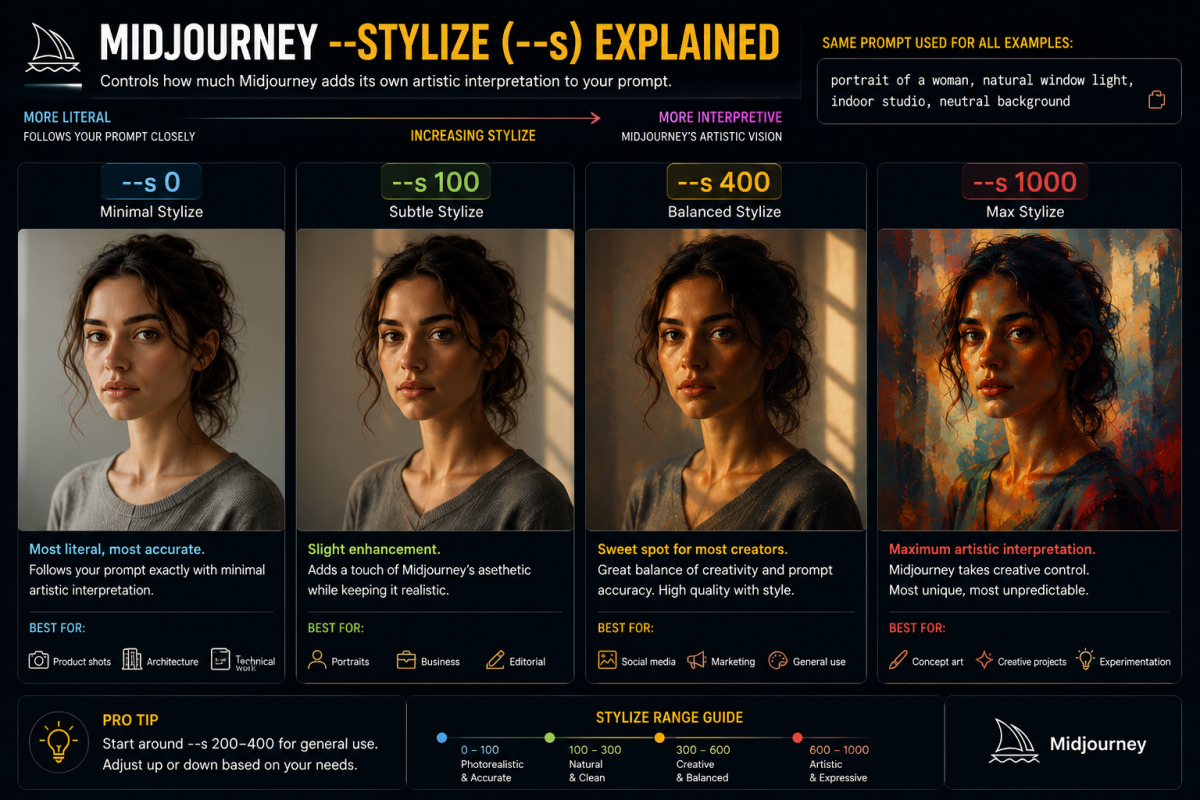
The stylize parameter is one of the most powerful creative controls in Midjourney and one of the most misunderstood. It controls how strongly Midjourney applies its own aesthetic intelligence and artistic preferences to your prompt: how much the model expresses its own visual sensibility versus producing a literal, precise interpretation of your words.
At –s 0, Midjourney produces the most literal interpretation of your prompt possible. The output stays relatively flat, direct, and close to what you described without much artistic embellishment. This suits precise, controllable output for technical or commercial work, such as product shots, interface mockups, or document illustrations, where Midjourney’s default aesthetic choices would fight against what the image actually needs to do.
At –s 1000, Midjourney applies its maximum aesthetic interpretation. The output turns dramatically stylised, visually striking, and strongly reflective of the model’s own aesthetic sensibility. Your prompt still guides the general direction, but Midjourney makes aggressive compositional, lighting, and colour choices that may diverge significantly from what you literally described. You get the most visually impressive and surprising results this way, but also the hardest to control predictably.
The Sweet Spot Values for Different Work Types
Use –s 0 to 100 combined with –style raw for photorealistic photography where accuracy matters most, such as product shots, portrait photography, or architectural imagery. Content creation that wants quality Midjourney output but reasonable prompt adherence, such as blog illustrations or social media content, works well at –s 200 to 400. This range gives you Midjourney’s visual quality and compositional intelligence while still following your description closely enough to stay reliably on-brief.
Push to –s 600 to 1000 for artistic, experimental, or conceptual work where you want Midjourney to express maximum creativity, such as concept art or experimental visual exploration.
–chaos or –c: How to Control Variation in Your Midjourney Results
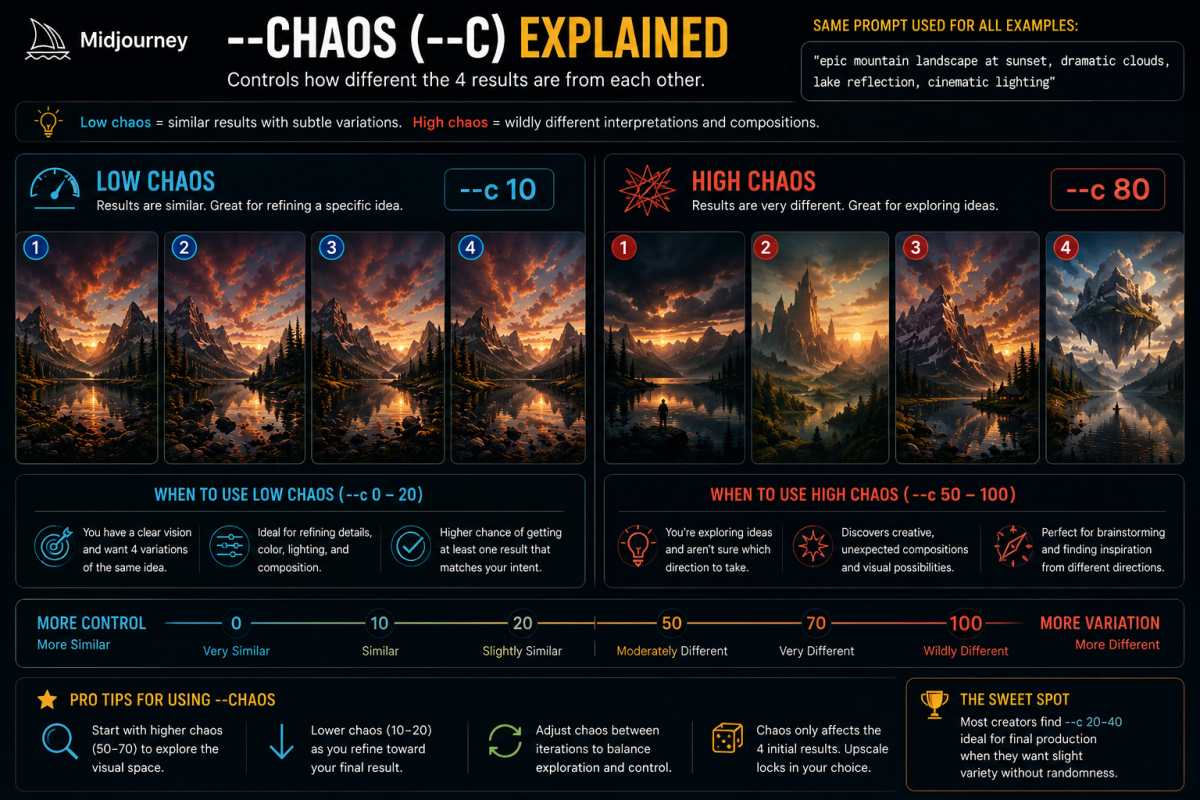
The chaos parameter controls how different the four images in a single generation are from each other. It is one of the most practically useful parameters across a creative workflow, and knowing when to use high versus low chaos values changes how efficiently you can work toward a specific visual goal.
At –c 0, the four generated images stay tightly similar. They represent four close interpretations of the same prompt, which helps when you have a clear, specific vision and want four high-quality attempts at that same concept. The similarity raises your odds of getting at least one result that closely matches your intention, and the subtle variations between them help with fine-tuning a specific look.
At –c 100, the four generated images differ dramatically from each other, exploring wildly different compositional approaches, lighting interpretations, style variations, and visual possibilities within the space of your prompt. High chaos earns its keep most in the exploratory phase of a project, when you have not yet settled on a visual direction and want to see a genuinely diverse range of possibilities before narrowing down.
The Practical Chaos Workflow
The most effective approach starts with moderate to high chaos, around 50 to 70, when you begin a new prompt and want to explore the visual space.
From there, progressively reduce chaos as you refine your prompt toward the specific result you are targeting. By the time you generate final production images, a chaos value of 10 to 20 gives you four slightly varied but consistently high-quality interpretations of your refined prompt.
–quality or –q: A Legacy Parameter Worth Knowing
The quality parameter controls how much rendering computation Midjourney applies to each image, but it is worth knowing upfront that this is now a legacy parameter. Midjourney’s own version comparison documentation lists –q as supported on V6, V6.1, and V7, not on V8.1 or V8.2. This flag simply does nothing if you are working on the current default model.
It still helps to understand if you deliberately drop down to V7 or earlier for a specific prompt style. On those versions, –q 1 served as the default, producing standard output quality. Setting –q 0.25 or –q 0.5 produced faster, lower-detail generations useful for rapid iteration. Setting –q 2 added extra detail and refinement, and V7 introduced –q 4 for added coherence in complex, multi-element scenes at four times the standard GPU cost.
On V8.1 and V8.2, the model itself has effectively absorbed the render-detail role –q used to play, with –hd now handling the resolution side of that equation instead.
–no: Using Negative Prompts to Remove Unwanted Elements
The –no parameter tells Midjourney specifically what to exclude from the generated image. It is one of the most practically useful parameters for fixing consistent problems in your outputs, and beginners consistently underuse it, trying to solve exclusion problems through positive prompt additions instead.
Say Midjourney keeps adding an unwanted element: crowds to a landscape scene you want empty, text to a clean product shot, deformed hands to a portrait, or a colour that clashes with your intended palette. Reaching for –no is almost always faster and more reliable than trying to describe your way around the problem by adding more positive content to the main prompt.
A few –no combinations come up often by category. Clean product and commercial photography benefits from –no text, watermarks, logos, people, shadows. Human portrait work does well with –no deformed hands, extra fingers, multiple people. Landscape and environment work, especially in a historical or natural aesthetic, often needs –no people, tourists, signs, text, modern elements. Illustration and graphic design frequently calls for –no photorealism, photography style, blurry elements, gradient backgrounds.
Commas separate multiple exclusions within the same –no parameter, for example –no text, logos, watermarks, people. You do not need multiple –no flags; a single flag can hold a comma-separated list of everything you want excluded.
New V8 Advanced Parameters You Need to Know in 2026
–hd (Native 2K Resolution)
The –hd flag ranks among the most practically impactful additions to Midjourney since the tool launched, and it carries forward into V8.2. It enables native 2K resolution output, images generated at 2048 pixels, without the quality loss and occasional artefacts that come with post-generation upscaling.
Earlier Midjourney versions required generating at standard resolution first, then upscaling through Midjourney’s upscaler tools to get a high-resolution image. That process added detail but introduced a second generation step that could add inconsistencies and extra time. With –hd, Midjourney renders the 2K resolution natively in a single pass from the beginning, rather than enlarging a lower-resolution output afterward.
Midjourney’s official documentation puts the HD cost at 1.3 minutes of GPU time, compared with 0.8 minutes for standard definition.
That is a real but not prohibitive premium for the quality gain, and it matters most for anyone using Midjourney output for print, large-format display, or professional portfolios. One limitation worth knowing: running inpainting or outpainting tools such as Pan, Zoom Out, or Edit and Vary Region on an HD image downscales the result back to standard definition, so you would need to run Upscale again to return it to HD resolution.
Enable HD mode on web in the Version section of the settings panel, or add –hd at the end of your prompt. You can also retroactively run an existing standard-definition image in HD using the “Run as HD” button in the lightbox, which reruns the same seed-locked prompt at 2K with minor variations.
–sd (Standard Definition, Explicit)
With HD now a prominent mode on V8.1 and V8.2, Midjourney added –sd as an explicit standard definition flag for clarity. When HD is set as your default in settings, adding –sd to a specific prompt overrides that default for that generation, which helps when you want fast, lower-cost generations for exploration and iteration before committing to HD for final production images.
–raw (Minimal Style Interpretation)
–raw existed in earlier versions but became significantly more important from V8 onward, where the model’s default aesthetics read as more pronounced and opinionated than in previous versions. Adding –raw tells Midjourney to minimise its own artistic interpretation and produce a more photographic, controlled, and literal output. Midjourney’s own guidance explicitly recommends starting with –raw if you want a more photographic or plain look, or if you are using moodboards or style references to control your visual direction.
The Full Midjourney Advanced Parameters List: Every Setting Worth Knowing
–niji (Anime and Illustration Mode)
Niji is a separate model family developed in collaboration with Spellbrush, rather than a flag you add on top of –v. Selecting –niji 7 switches you to that dedicated anime and manga model instead of V8.1 or V8.2. Niji 7, launched January 9, 2026, brought a major boost in coherency: fine details like eyes, reflections, and small background elements read clearer, and the model follows prompts more closely for specific character designs. It also introduced a cleaner, flatter look and turned more literal in how it reads prompts, so broad or “vibey” descriptions may not behave quite the way they did on earlier Niji versions.
–stop (Partial Rendering)
The –stop parameter halts generation at a specified percentage of the process, producing an intentionally incomplete, painterly, or sketch-like output. –stop 50 stops the image at roughly half the rendering completion: soft and impressionistic, with broad strokes rather than fine detail. –stop 80 leaves an image that is mostly complete but keeps some painterly looseness at the edges and in fine details. Think of this as an artistic parameter for deliberately impressionistic output rather than a quality shortcut.
–tile (Seamless Pattern Generation)
The –tile parameter generates images that tile seamlessly: the edges connect cleanly to the opposite edges, so the image repeats infinitely without visible seams. This suits background patterns, textile designs, wallpapers, and surface textures that need to repeat. Without –tile, most Midjourney images carry a distinct compositional centre that makes them impossible to tile without visible joins.
–style raw (Photographic Accuracy)
–style raw is technically a style modifier rather than a standalone parameter, but it acts as one of the most useful controls in Midjourney for photorealistic work. It strips out Midjourney’s default aesthetic enhancement, the AI-curated visual improvements it applies by default, and produces output that reflects real photography more accurately. Combine –style raw with low stylize values for product shots, portraits, and any commercial work where natural photographic accuracy matters more than aesthetic beauty, and you consistently get the most usable professional output.
Advanced Midjourney Consistency Parameters
–sref (Style Reference)
The style reference parameter lets you upload an image and use its visual aesthetic as a guide for your generation. Provide an image URL after –sref and Midjourney applies the colour palette, lighting approach, overall compositional feel, and stylistic language of that reference image to your prompt.
This is the most effective tool for maintaining visual consistency across a series of images, for brand content, editorial series, or any project that needs multiple images to feel like they belong to the same visual world. It works across every current version, including V8.1 and V8.2.
–cref (Character Reference): A Legacy Parameter
Character Reference addressed one of Midjourney’s most persistent limitations, keeping a recognisable, visually consistent character across multiple images, but it is worth knowing that it is now legacy. Midjourney’s version comparison documentation lists –cref as available on V6 only. V7 replaced it with Omni Reference, and V8.1 and V8.2 support neither Character Reference nor Omni Reference.
If character consistency across generations matters for your project, that currently means working on V6 or V7 specifically for that need, or relying on –sref and detailed, consistent written descriptions of your character while on V8.1 or V8.2.
Moodboards
Moodboards live on the web interface and let you collect multiple reference images, then use them collectively as an aesthetic guide for your generations. Where –sref applies a single image’s style, a moodboard synthesises the aesthetic from multiple images, which helps when your visual direction comes from a combination of references rather than a single source.
Midjourney Advanced Parameters Most Guides Never Explain Properly
:: (Prompt Weighting): Another Legacy Parameter
Double colons followed by a number assign relative weight to specific elements within your prompt. Writing “Nigerian market::2 sunset::1” tells Midjourney that the Nigerian market element should get twice as much compositional weight as the sunset element. This helps when a specific element in your prompt keeps getting underrepresented because the model distributes its attention across the entire prompt equally.
Like –cref and –q, this is now a legacy feature. Midjourney’s version documentation lists multi-prompting as supported on V6 and V7 only, not on V8.1 or V8.2. If precise, weighted control over specific prompt elements matters to your workflow, treat that as a reason to work on V7 for that particular task rather than the current default.
–seed (Reproducible Results)
Every Midjourney image starts from a random seed number, the starting point of the noise from which the image renders. By default, this seed changes randomly for each generation. Adding –seed followed by a specific number forces Midjourney to start from the same noise pattern, which produces more similar results across multiple generations with variations of the same prompt.
This helps with controlled comparisons, changing one element of a prompt while keeping everything else identical, and with reproducing a specific generation you want to build on further. On V8.1 and V8.2, matched seeds now produce results that land around 99 percent identical rather than an exact match, close enough for reliable side-by-side comparisons. You can find the seed number for any image by clicking the envelope reaction icon on it in Discord.
–weird or –w (Experimental Aesthetics)
The –weird parameter introduces intentional aesthetic strangeness into the output: unusual visual choices, unexpected combinations, and results that sit outside Midjourney’s normal aesthetic sensibility. Low –w values add subtle visual interest and unexpectedness. High –w values push toward deliberately surreal, unconventional, or strange outputs. Treat this as an artistic exploration tool rather than a production parameter, useful when you want Midjourney to surprise you with directions you would not have thought to specify yourself.
Best Midjourney Parameter Combinations for Every Creative Situation
Rather than memorising every parameter in isolation, build a mental library of parameter combinations that work for specific creative situations. Below are the combinations that consistently produce strong results across the most common use cases on the current V8.2 default.
Commercial product photography that needs to look like a real photograph rather than AI-generated art: –ar 1:1 or –ar 4:5 –v 8.2 –style raw –s 0 –no people, text, logos, watermarks.
Cinematic landscape or environmental photography with strong visual atmosphere: –ar 21:9 –v 8.2 –s 400 –chaos 20.
Portrait photography with natural, editorial quality: –ar 4:5 –v 8.2 –style raw –s 100 –no deformed hands, extra fingers.
Concept art and creative illustration with strong Midjourney aesthetic: –ar 4:5 or 16:9 –v 8.2 –s 700 –chaos 30.
A social media thumbnail with bold visual impact: –ar 16:9 –v 8.2 –s 400 –no text, logos.
Native 2K resolution production images: add –hd to any of the above combinations, keeping in mind the 4:1 maximum aspect ratio for HD and the 1.3 minute GPU cost.
Anime or manga style illustrations: –niji 7 –ar 4:5 –s 300, used on its own rather than combined with –v, since Niji is a separate model.
The Most Common Midjourney Advanced Parameter Mistakes to Avoid
Not setting –ar tops the list, and we already covered that in detail. Right behind it: using –hd for every single generation instead of reserving it for final production images, which drains your GPU time budget faster than necessary during exploration and iteration.
Setting –stylize too high for commercial or product work causes a third common problem, since Midjourney’s maximum aesthetic interpretation produces beautiful but impractical images that ignore the functional requirements of the brief. Bringing –s down to 0 to 100 with –style raw for commercial work is almost always the right call.
Trying to use –q, –cref, or multi-prompting with :: on V8.1 or V8.2 trips people up next, since nothing happens and it is not obvious why. These are legacy parameters now, so if your workflow genuinely depends on one of them, specify –v 7 or –v 6 for that particular generation rather than assuming the flag works everywhere.
Last, treating parameters as fixed settings rather than as a conversation holds people back the most. The best Midjourney users adjust parameters systematically in response to what each generation tells them about how the model is interpreting their prompt. Too stylised? Reduce –s. Too similar across the four variations? Increase –c. Adding something unwanted? Add it to –no. Parameters are tools for a conversation with the model, not a formula you apply once and leave unchanged.
Parameters Are What Separate Casual Users From Serious Creators
Understanding parameters is the step that separates casual Midjourney users from people who get consistently excellent results. The natural language description brings Midjourney to the right creative territory. The parameters determine how it moves through that territory and what it produces when it arrives. Both matter, and most guides only teach one properly.
If you have not yet mastered the prompt structure that works alongside these parameters, the complete Midjourney prompts guide covers everything about writing the natural language part of your prompt, including twelve copy-paste examples you can start using immediately and adapt with the parameters covered here. And if you are working out what a Midjourney subscription and its GPU costs actually mean for your budget, this guide to paying for AI tools from Nigeria is worth reading before you commit to a plan.











Join the discussion Tap to open the comment form +