
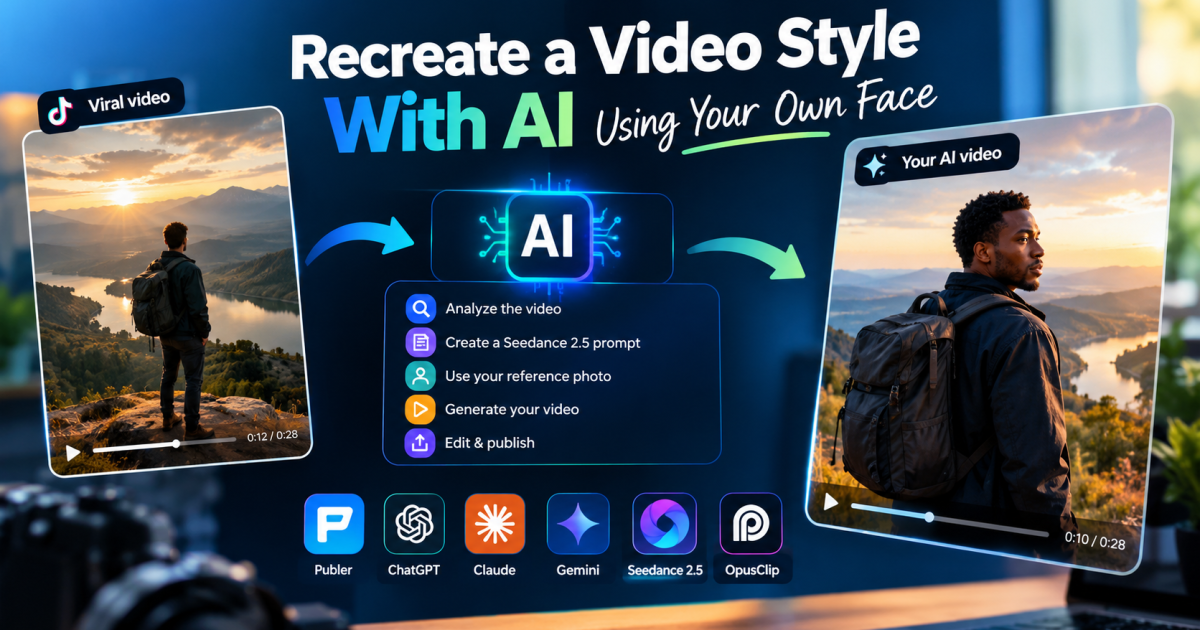
You have probably seen a video on TikTok, Instagram or YouTube and wondered how the creator achieved that particular camera movement, lighting, cinematic look or seemingly impossible shot.
Now imagine using AI to study the video, understand how its scenes work, and create a new version featuring you instead of the original subject.
That is the idea behind a workflow currently circulating online: download a reference video, ask an AI assistant to analyze it, turn the analysis into a generation prompt, and use a tool such as Seedance 2.5 to create a new video.
The idea is genuinely useful. But after examining how the tools fit together, there is an important distinction to understand: an AI-generated description of a video is not the same thing as a video generator having direct access to that video’s visual references.
That difference can affect how closely your result follows the original camera movement, composition and action.
Here is how I would approach the process, what each tool is supposed to do, and where I would be careful before spending credits on multiple generations.
[Visual placeholder: A cinematic reference-video frame transitioning into a new AI-generated scene featuring a different creator.]
What You Need to Recreate a Video Style With AI
The workflow involves four main components.
- Publer: A convenient way to download eligible public social media videos when the platform permits it.
- ChatGPT, Claude or Gemini: An AI assistant that can help analyze the footage and develop a structured generation prompt, subject to its current video-input capabilities.
- Seedance 2.5: ByteDance’s video-generation model, which supports multimodal references and more controlled visual storytelling.
- A compatible editor or publishing tool: Software for refining the generated footage and preparing it for distribution.
These tools do different jobs. You do not necessarily need all four, and the process is not guaranteed to work as one seamless, automated pipeline.
Step 1: Get a Reference Video You Are Allowed to Use
Start with a video that demonstrates the visual effect, camera movement or storytelling style you want to explore.
If the video belongs to you, use your original file whenever possible. If it belongs to someone else, obtain the necessary permission before downloading or adapting it for a close recreation.
For eligible public posts, Publer provides a free media downloader.
Its documented workflow is straightforward:
- Open Publer’s media downloader.
- Copy the URL of the public video.
- Paste the URL into the downloader.
- Download the video if the source platform permits it.
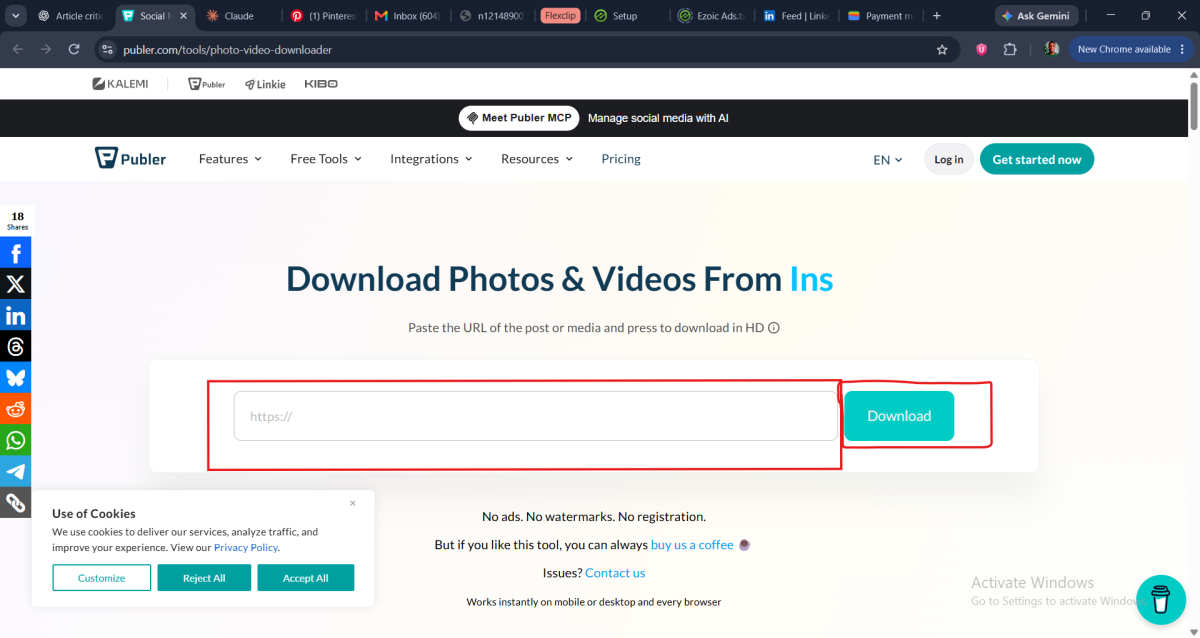
Publer supports several major social platforms, although privacy settings and platform restrictions can prevent some downloads. See its official downloader instructions.
One important point: being able to download a video does not mean you have permission to reproduce or republish it. A public URL is not a copyright licence.
If downloading is unavailable or unnecessary, you can work from footage you already own or use another authorized reference source.
Step 2: Ask AI to Analyze the Video
This is where the process becomes more interesting.
Instead of simply asking an AI assistant to describe what happens in a video, ask it to break down the visual decisions that make the footage distinctive.

These include:
- Camera movement and shot transitions.
- Subject movement and positioning.
- Camera angles and framing.
- Lighting direction, shadows and colour.
- Background elements and depth.
- Scene duration and pacing.
- Changes in composition throughout the sequence.
The input method matters. ChatGPT’s video attachment capabilities depend on the supported upload method and account, and its analysis can be incomplete. Gemini also offers video-understanding capabilities, subject to its current interface and limits. Check the capabilities available in your account before building your workflow around a particular assistant.
For example, ChatGPT documents its current capabilities and limitations in its image and video input FAQ.
The prompt I would use
Rather than immediately demanding a perfect recreation, I would first ask the assistant to produce a structured visual analysis.
Analyze the reference video I provide and create a detailed visual production brief.
Break the footage into its major shots or visual beats. For each one, describe the visible subject, action, composition, camera movement, lighting, environment, background details, pacing and transitions.
Distinguish what you can directly observe from what you are inferring. Do not invent lens specifications, camera equipment or technical details that cannot be established from the footage.
Identify the visual characteristics that make the video distinctive and explain which could be reproduced in a new scene.
Highlight any movements, transitions or continuity requirements that may be difficult for an AI video generator to reproduce accurately.
Present the analysis in a structured format that I can use to develop a generation prompt.
This first step gives you something to inspect and correct before committing to a generation.
If the assistant cannot inspect the video directly, extract representative frames or use a supported video-analysis method. Do not assume that a description based on a few screenshots captures every movement or transition in the original.
[Visual placeholder: Example shot-analysis sheet showing camera movement, lighting, subject action and composition.]
Step 3: Turn the Analysis Into a Seedance 2.5 Prompt
This is the part of the workflow where the choice of generation method matters.
ByteDance introduced Seedance 2.5 with support for longer video generation, multimodal references and improved control over elements such as composition, characters, motion and camera work.
According to ByteDance’s official Seedance 2.5 announcement, the model can generate clips up to 30 seconds in a single pass and accept up to 30 images, 10 video clips and 10 audio clips as reference materials in one generation.
That means a workflow based exclusively on asking a chatbot to describe a video may not be the only option. Where your chosen Seedance interface supports the relevant reference inputs, you can use visual references to guide the generation more directly.
However, the exact controls and available features depend on the platform through which you access the model.
The generation prompt
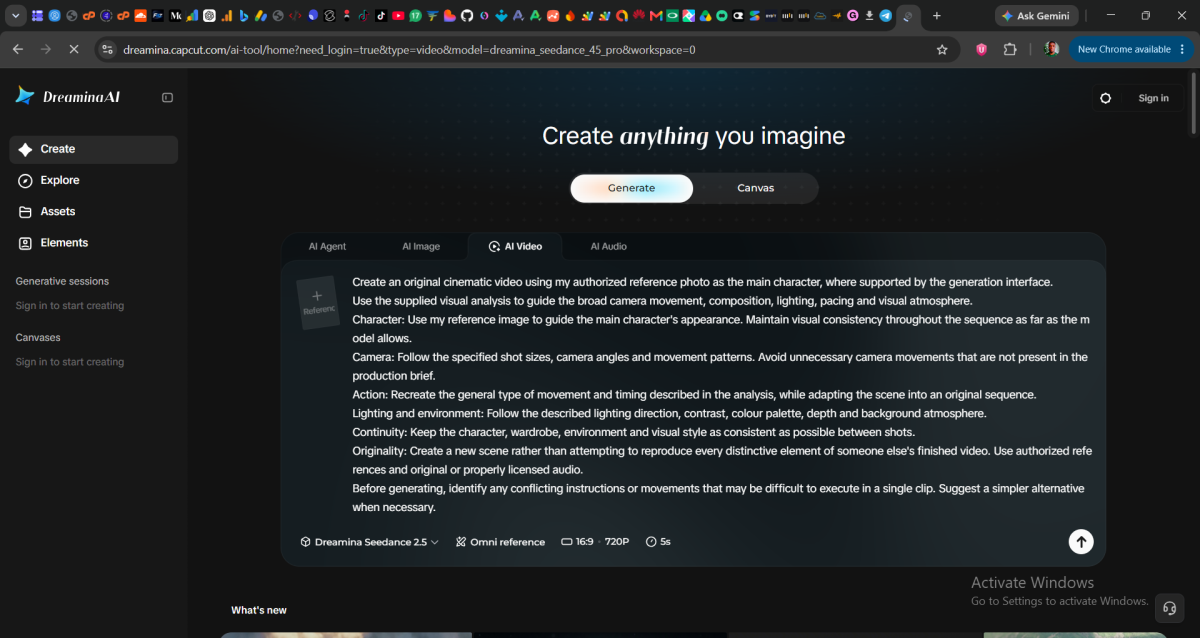
After reviewing the analysis, use a prompt like this as a starting point:
Create an original cinematic video using my authorized reference photo as the main character, where supported by the generation interface.
Use the supplied visual analysis to guide the broad camera movement, composition, lighting, pacing and visual atmosphere.
Character: Use my reference image to guide the main character’s appearance. Maintain visual consistency throughout the sequence as far as the model allows.
Camera: Follow the specified shot sizes, camera angles and movement patterns. Avoid unnecessary camera movements that are not present in the production brief.
Action: Recreate the general type of movement and timing described in the analysis, while adapting the scene into an original sequence.
Lighting and environment: Follow the described lighting direction, contrast, colour palette, depth and background atmosphere.
Continuity: Keep the character, wardrobe, environment and visual style as consistent as possible between shots.
Originality: Create a new scene rather than attempting to reproduce every distinctive element of someone else’s finished video. Use authorized references and original or properly licensed audio.
Before generating, identify any conflicting instructions or movements that may be difficult to execute in a single clip. Suggest a simpler alternative when necessary.
This is a starting prompt, not a guarantee of a perfect result. You should adapt it to the actual scene, reference inputs and controls available in your chosen generation interface.
For more background on the model, see our existing FaithfulBiz guide, Seedance 2.5: What Changed and What It Means for You.
Step 4: Use Your Own Photo as a Reference
If your goal is to appear in the generated video, prepare a clear photo that represents your intended appearance.
A useful reference generally shows your face clearly, has reasonable lighting, and avoids heavy filters or obstructions.
Where the generator supports identity or character references, use the appropriate input control and specify what the image should guide.
There is a difference between using a photo as a reference and guaranteeing that the generated character will remain identical in every frame. Facial details, clothing, hands and body proportions can still change during motion.
You may need to simplify the scene, generate several alternatives or adjust the reference setup to obtain a more consistent result.
Also check the generator’s current rules on real-person images and likenesses before uploading a photo. Use your own image or one you have explicit authorization to use.
Step 5: Generate, Review and Refine the Result
Do not judge the first generation solely by whether it looks impressive.
Compare it with your production brief and inspect the specific elements you wanted to preserve.
| What to check | What to look for |
|---|---|
| Camera movement | Does the shot move in the intended direction? |
| Character consistency | Does the person remain recognizable throughout? |
| Composition | Is the subject positioned as intended? |
| Lighting | Are the highlights, shadows and colours consistent? |
| Motion | Does the action look natural, or are there distortions? |
| Pacing | Do the major visual beats happen at the intended moments? |
| Continuity | Do the background, clothing and other details change unexpectedly? |
If the result is weak, change one or two things at a time rather than rewriting the entire prompt without understanding what went wrong.
For example, if the camera movement is too complicated, simplify it. If the character changes appearance, strengthen the reference instructions or reduce unnecessary scene changes. If the lighting is inconsistent, describe the light source and direction more explicitly.
This is where a structured analysis can be more useful than an extremely long prompt filled with details the generator may not follow.
Step 6: Edit and Publish the Finished Video

Once you have a usable generation, move to your editing workflow.
You may need to trim the beginning or ending, adjust the timing, add titles, balance the audio or prepare different aspect ratios for different platforms.
Tools such as CapCut can help with final editing. OpusClip also offers video-editing and publishing features, but do not assume that every OpusClip workflow generates videos directly from a Seedance prompt. Confirm the specific product, supported model and current feature set before relying on that part of the original viral tutorial.
If you plan to distribute the video across YouTube, Instagram, Facebook, TikTok, X or LinkedIn, check the export settings and publishing options available to your account.
And if you are creating videos for a YouTube channel, remember that using AI does not automatically make content ineligible for monetization. Originality, meaningful creative contribution and compliance with the platform’s policies still matter. Our guide to YouTube AI content and monetization explains that distinction in more detail.
What This Workflow Can and Cannot Do
The biggest mistake would be treating the process as a one-click way to duplicate any viral video.
AI can help you study camera movement, understand visual structure and develop a more detailed production prompt. Reference-based generation can also give you more control over a new scene.
But no amount of prompt detail guarantees that every movement, transition, facial expression or background element will match the reference exactly.
The result depends on the quality of the analysis, the reference materials, the generation model, the controls exposed by the platform and the complexity of the scene.
There is also a creative distinction worth preserving: learning from a video’s general visual style is not the same as copying its entire execution. Permission, copyright, audio rights and consent for recognizable likenesses may all be relevant when adapting another creator’s work.
My Takeaway
The most useful lesson here is not that AI can copy any viral video if you find the right prompt.
It is that you can turn a video you admire into a structured visual brief, use that brief to guide an AI generation, and refine the result into something of your own.
Start with a reference you are authorized to use. Analyze the important visual elements. Choose a generation method that supports the references you actually have. Then review the output instead of assuming the first attempt will be perfect.
That approach is more realistic, more repeatable and more useful than chasing a supposedly magic prompt.























Conversation (0)