

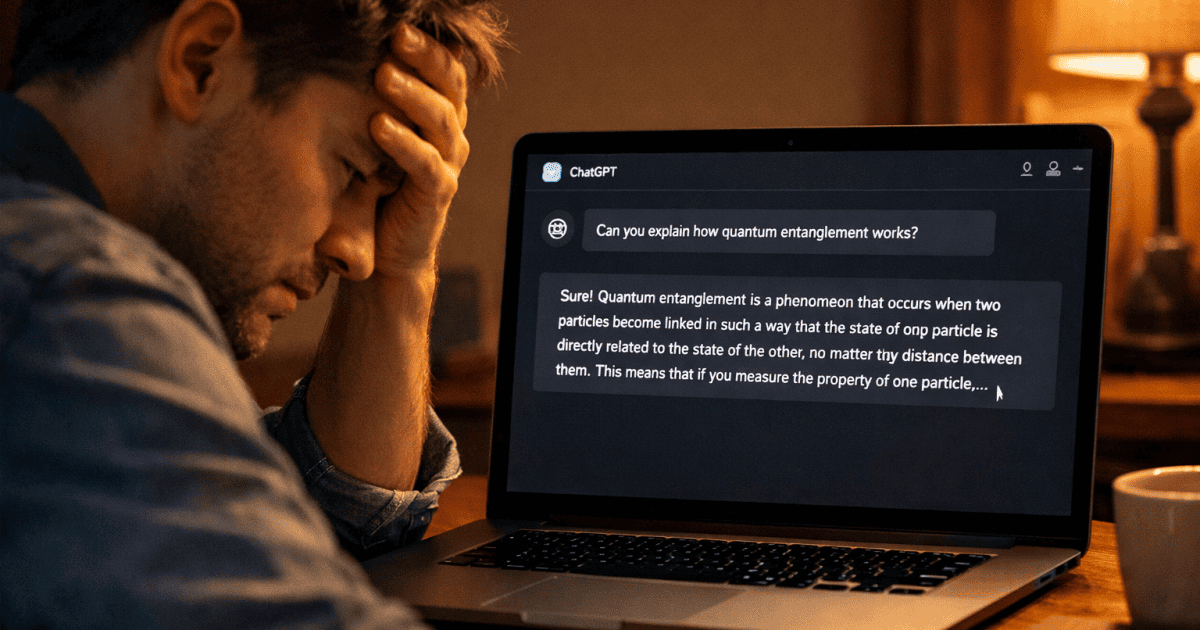
You are in the middle of something important. ChatGPT is generating exactly what you need: a detailed response, a long piece of writing, a complex analysis. Then it starts slowing down or freezing.
It stops mid-sentence. Sometimes mid-word. Nothing else happens. You wait, still nothing, then you refresh, lose half the output, and have to start over.
If you have used ChatGPT for any serious work, this has happened to you more than once. The frustration is compounded by not knowing whether the problem is your internet, your browser, OpenAI’s servers, or something you did wrong.
ChatGPT stopping mid-response is one of the most common issues reported by everyday users in 2026, and it has several distinct causes that need different fixes. This post explains what is actually happening and how to stop it from derailing your work.
Key Takeaway
ChatGPT stopping mid-response usually comes from one of four causes: a token limit, a dropped connection, server overload, or an output length ceiling. Each one has a different fix, so identifying which one you are dealing with matters more than any generic troubleshooting step.
The Truth Most Troubleshooting Guides Miss
Most guides about ChatGPT stopping mid-response treat it as a single problem with a single fix, usually “clear your cache and cookies” or “check your internet connection.” Those fixes work sometimes because they only address one of several possible causes.
Applying the same fix to every type of interruption is a bit like restarting your phone every time an app crashes without ever asking why it crashed. The restart sometimes works, but the underlying cause stays unresolved.
ChatGPT mid-response stops fall into four distinct categories. They look identical on the surface but have different root causes and different solutions. Knowing which category your interruption falls into is what makes your fix stick, rather than just buying you five more minutes before the same problem returns.
This is closely related to the broader question of why ChatGPT slows down during intensive sessions. The full guide on why ChatGPT gets slow and how to fix it covers the performance side of this same problem in depth.
Why ChatGPT Stops Mid-Response: The Four Real Causes
ChatGPT stopping mid-response happens when the generation process is interrupted before the model finishes producing its output. The interruption can occur at the network layer, the browser layer, the server layer, or inside the model itself. Each layer produces a slightly different stopping behavior, which you can use to diagnose which cause you are dealing with.
Cause 1: Token Limit Reached
This is the most misunderstood cause because it looks like a technical fault but is actually the model behaving as intended. ChatGPT processes text in chunks called tokens, roughly three to four characters each.
Every conversation has a maximum token limit that includes both your messages and ChatGPT’s responses combined. When that combined count reaches the model’s context window ceiling, ChatGPT stops generating. Nothing has broken. It has simply reached the boundary of what it can hold in working memory for that session.
OpenAI has expanded context windows considerably over the past couple of years, so token limit stops are less common for casual users than they used to be. They still occur reliably in long, intensive sessions, particularly once you have been working in the same thread for an hour or more, or when you are asking for very long structured outputs like detailed reports or multi-section documents.
The signal that distinguishes a token limit stop from other types is that the response ends at a logical point, the end of a paragraph or the end of a section, rather than truly mid-sentence. The model knows it is running out of room and wraps up where it can.
Cause 2: Connection or Stream Interruption
ChatGPT delivers responses through a streaming protocol. Text arrives in your browser progressively as it is generated, rather than all at once once generation is complete. This is what makes the typing effect feel real time.
It also means that any interruption to the connection between your browser and OpenAI’s servers during generation causes the stream to drop. The response stops wherever the last successfully delivered chunk landed. This is what the “Error in Message Stream” message refers to when you see it, and it is one of the most commonly reported ChatGPT errors.
Connection interruptions are most commonly caused by a few recurring things. Unstable Wi-Fi can drop packets mid-response. VPN connections can introduce latency or packet loss that the streaming protocol does not tolerate well.
Browser extensions, especially privacy tools, ad blockers, and security extensions, can misread the long-running connection as suspicious activity and interfere with it. Idle session timeouts can also expire your authentication token while a response is still streaming.
Network instability, expired sessions, and temporary server-side hiccups are the causes reported most often across ChatGPT troubleshooting communities and support guides. The distinguishing sign of a stream interruption is that it happens abruptly mid-sentence with no logical stopping point. The text simply cuts off wherever the connection dropped.
Key Note
There is a related but slightly different problem worth naming separately. Sometimes reconnecting after a drop does not just stop the response. It makes ChatGPT start the entire answer over from the beginning.
This happens when the reconnect triggers a fresh request instead of resuming the interrupted one, so the model has no memory of the partial answer it already gave you. If this keeps happening, copy whatever text did appear before it restarts. Then use the recovery prompt covered later in this post instead of waiting for it to finish a second time.
Cause 3: Server Load and Queue Drops
OpenAI’s infrastructure serves an enormous number of concurrent users worldwide. During periods of exceptionally high demand, major product announcements, viral moments, or peak business hours across multiple time zones, request queues can become overloaded and drop generations before they complete.
This is a server-side cause that has nothing to do with your setup, and there is little you can fix on your end beyond waiting and retrying. The signal is that the problem happens suddenly on what has been a reliably working connection, affects multiple retries in a row, and often coincides with slower than normal response times across the board.
Server load stops are still worth identifying quickly so you are not wasting time troubleshooting your own setup when the problem sits on OpenAI’s end. Checking status.openai.com takes thirty seconds and tells you immediately whether there is an active incident affecting generation.
Cause 4: Output Length Limit Hit
Separate from the conversation-level token limit, ChatGPT also applies a per-response output length limit that stops any single generated response from becoming indefinitely long. This limit is intentional. It prevents runaway generation that would consume disproportionate compute and slow things down for other users.
When you ask for a very long output, a 3,000-word article, a comprehensive code file, a detailed multi-section report, ChatGPT may stop at its output limit and wait for you rather than completing the full request in one pass. This is not a bug. It is the model managing response length responsibly.
The fix is simple. Type “continue” or “keep going from where you left off,” or click the “Continue generating” button when it appears under the response, and ChatGPT resumes from the stopping point. The problem is that most users interpret this stop as an error and either refresh, losing the partial output, or start over from scratch when neither was necessary.
How to Fix ChatGPT Stopping Mid-Response: By Cause
Fix for Token Limit Stops
Start a new conversation and carry forward only the essential context using a structured summary. Before closing the old thread, ask it to summarize everything important: decisions made, context established, goals in progress, and the exact next step.
Paste that summary into a fresh chat and continue from there. The new thread has zero accumulated token history, which resets the context window and gives you the model’s full working memory for the next phase of your project. This is the same method covered in detail in the ChatGPT slow and fix guide, and it solves the token problem and the performance problem at the same time.
Fix for Connection and Stream Interruptions
Start with the fastest checks first. Refresh the page and retry the same prompt, since this clears an expired session token in most cases. If the stop recurs, disable browser extensions one at a time, starting with ad blockers, privacy tools, and VPN extensions, since these are the most frequent culprits for stream interruptions on otherwise stable connections.
Clearing your browser cache and cookies resolves a large share of ChatGPT glitches, since corrupted browser data frequently causes odd behavior. If the problem persists, try switching to a different browser on its latest build. Also avoid using ChatGPT on a VPN connection unless you have specifically tested that it does not introduce the packet loss that disrupts streaming.
Fix for Server Load Stops
Check status.openai.com first. If there is an active incident, wait fifteen to thirty minutes and retry. If the status page shows all systems operational but you are still seeing consistent stops, try using ChatGPT during off-peak hours, early morning or late evening in your local time zone, when North American business hours are outside their peak window.
And if you are also on the free plan and hitting consistent stops during peak hours, it may be worth considering whether a paid plan’s priority access reduces how often you get caught in queue drops during high demand.
Fix for Output Length Limit Stops
Do not refresh. Do not start over. Type “continue,” or click the “Continue generating” button if it appears, and ChatGPT resumes from the stopping point without losing any of the previous output.
For very long tasks where you expect multiple continuation prompts, tell ChatGPT upfront how you want length handled. Something like: “If this response becomes too long to complete in one output, stop at a logical section break and wait for me to say continue before proceeding.” This prevents the model from stopping mid-sentence and instead wraps up cleanly at a paragraph or section break, which makes the continuation feel intentional rather than accidental.
Breaking large tasks into explicitly sequenced parts at the prompt stage eliminates output limit stops entirely for most long-form work.
Recovering Work After ChatGPT Stops
When a stop happens and you lose partial output, recovery is possible more often than most users realize. If ChatGPT stopped mid-answer and refreshing removed the partial response, open the same chat from the sidebar or history. Sometimes the partial answer reappears after reloading, so copy it to a document before trying again.
If the partial response is gone entirely but the conversation history remains, use a specific recovery prompt rather than starting from scratch.
Your last answer stopped before finishing. Recreate it using the same structure and content, but make it complete in one response. Start from the beginning.
If you know specifically where the response cut off, a more targeted recovery prompt produces a better result.
Your last response stopped at [describe the last section covered]. Continue from that point and complete the remaining sections without repeating what was already written.
The most reliable protection against losing important work is copying completed sections to a separate document as you go, rather than waiting for the full response before saving anything. ChatGPT is not a document storage system. Treat it as a generation engine and save the outputs it produces in real time.
The Habits That Prevent Most Mid-Response Stops
The users who experience the fewest mid-response stops are not the ones with the best internet connections or the most expensive hardware. They are the ones who have built a few specific workflow habits that keep their sessions stable and their prompts within the range where ChatGPT operates most reliably.
Keep each conversation focused on one task at a time. A thread that handles research, drafting, editing, and formatting all at once accumulates context weight faster, burns through token limits faster, and produces longer individual responses that are more likely to hit output length limits.
One conversation, one task, is the simplest rule to follow. Start fresh for each new phase of a project rather than folding everything into one thread.
Break large requests into explicit sequential steps rather than asking for everything in one prompt. Instead of “write me a complete 2,000-word guide on X,” ask for the outline first, then each section individually. Each request stays within a comfortable output length, and the accumulated quality is usually better than what a single overloaded prompt produces.
Avoid sending follow-up prompts while ChatGPT is still generating a response, since this can crash the stream. Wait for the full response to finish before sending the next message. It sounds obvious, but it is one of the most common causes of stream interruptions for people who work quickly and impatiently.
Building the habit of waiting a few seconds for a response to finish before sending the next prompt removes a meaningful share of generation interruptions for most users.
What This Pattern Is Really Telling You
Frequent mid-response stops are almost always a signal about how you are using the tool, not a sign that the tool is broken. ChatGPT is exceptionally reliable for focused, bounded tasks. It becomes progressively less stable as sessions grow longer, requests get larger, and conversations accumulate more context than they need.
The stops are really the system telling you that something about the session structure is working against its optimal operating conditions. The users who get the most consistent, uninterrupted output from ChatGPT tend to treat each conversation as a focused sprint rather than an ongoing marathon.
Short conversations, targeted prompts, explicit length guidance, and regular context resets through fresh chats with structured summaries produce better results, fewer interruptions, and more finished work per hour than trying to run everything in one endless session. Once you understand how the tool actually works, the stops become predictable, the fixes become instinctive, and the frustration mostly disappears.


























Conversation (0)