

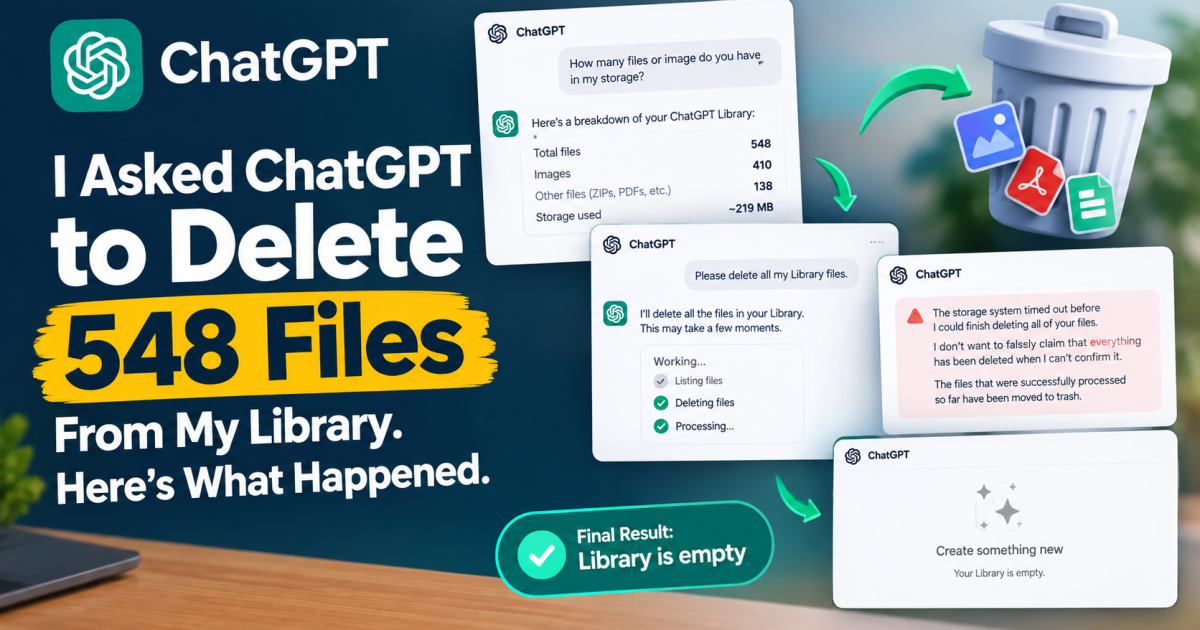
My ChatGPT Library had 548 files in it, including 410 images, and I wanted them gone.
Instead of going through the Library and deleting everything manually, I asked ChatGPT to inspect my files and clear them for me.
It found the files, started the deletion process and then hit a timeout. The interesting part was what happened next: ChatGPT did not simply tell me the job was finished. It told me it could not confirm that everything had been deleted.
I checked the Library myself afterward. It was empty.
I tested this on September 20, 2026.
How Much Storage Does ChatGPT Library Give You?
OpenAI’s current documentation lists separate Library storage limits by plan. Free users get 500 MB, while Go gets 4 GB, Plus and Business get 20 GB, and Pro gets 100 GB. OpenAI says Library storage is separate from the daily limits for chats and attachments.
| ChatGPT plan | Library storage |
|---|---|
| Free | 500 MB |
| Go | 4 GB |
| Plus / Business | 20 GB |
| Pro | 100 GB |
Those limits are worth knowing if you regularly create or upload images, PDFs, documents and other files. OpenAI says files you upload or create in ChatGPT can remain in your Library until you delete them. OpenAI’s Library documentation also explains the current storage and deletion options.
My Library Had 548 Files
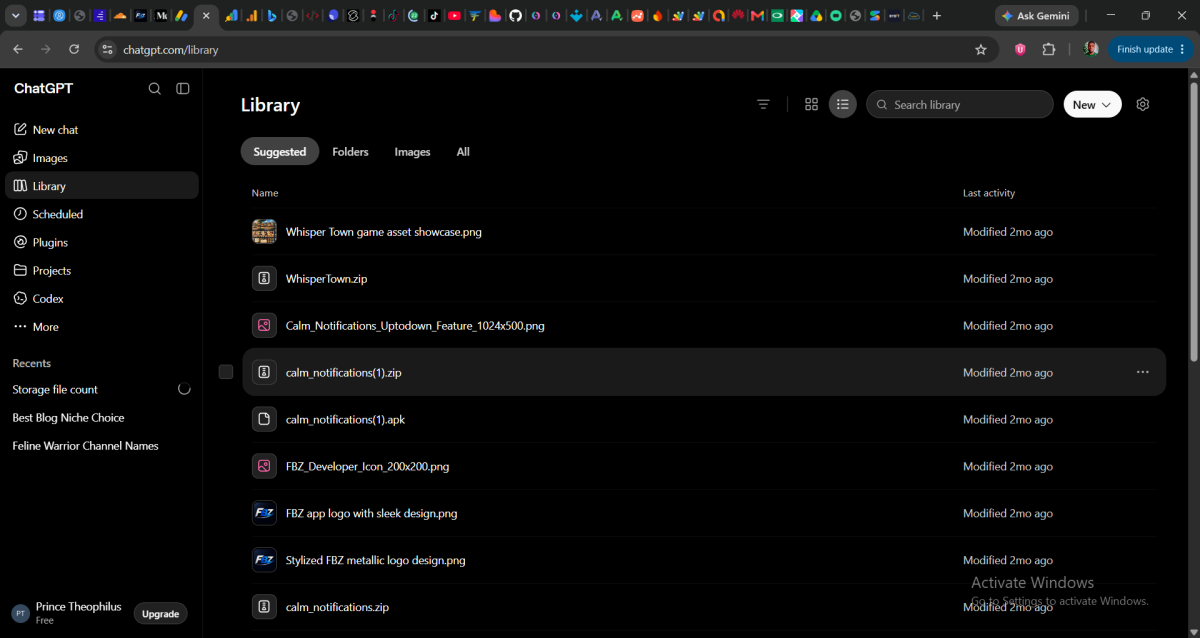
I started with a simple question in a normal ChatGPT conversation: “How many files or image do you have in my storage?”
ChatGPT checked the files available in my Library and returned a breakdown I could not have known just by looking at the Library page.
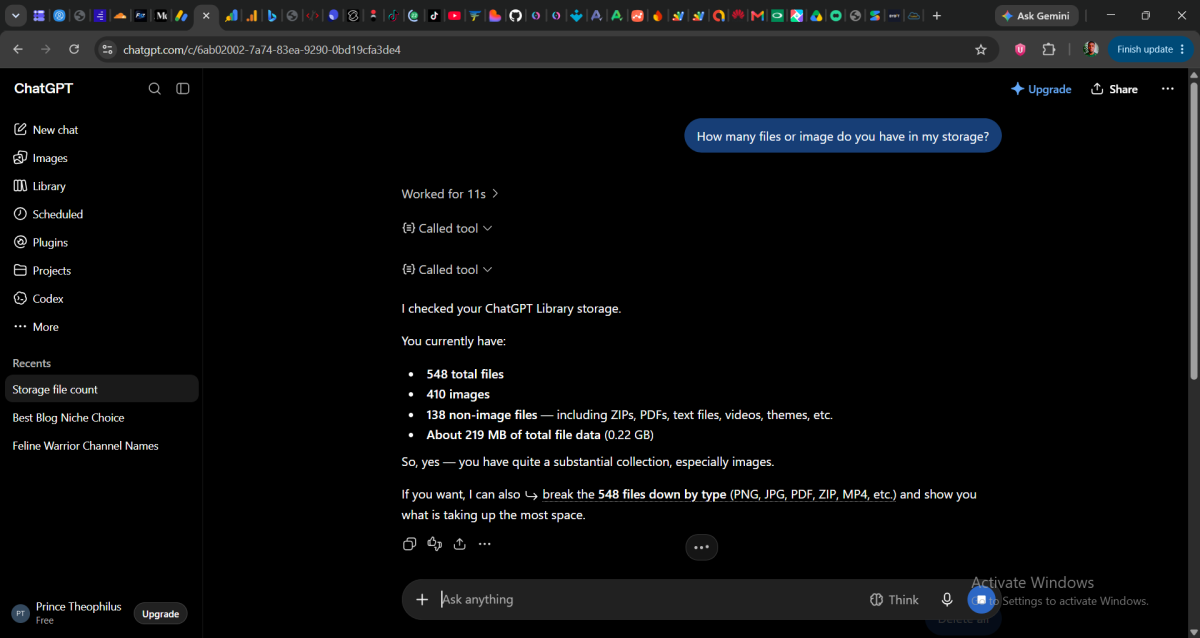
It found 548 files in total, made up of:
- 410 images
- 138 other files, including things such as ZIP files and PDFs
- About 219 MB of storage used
That immediately gave me a much clearer picture of what had accumulated in the Library.
Then I Asked ChatGPT to Delete Them
Once I knew how many files were there, I asked ChatGPT to clear the Library.
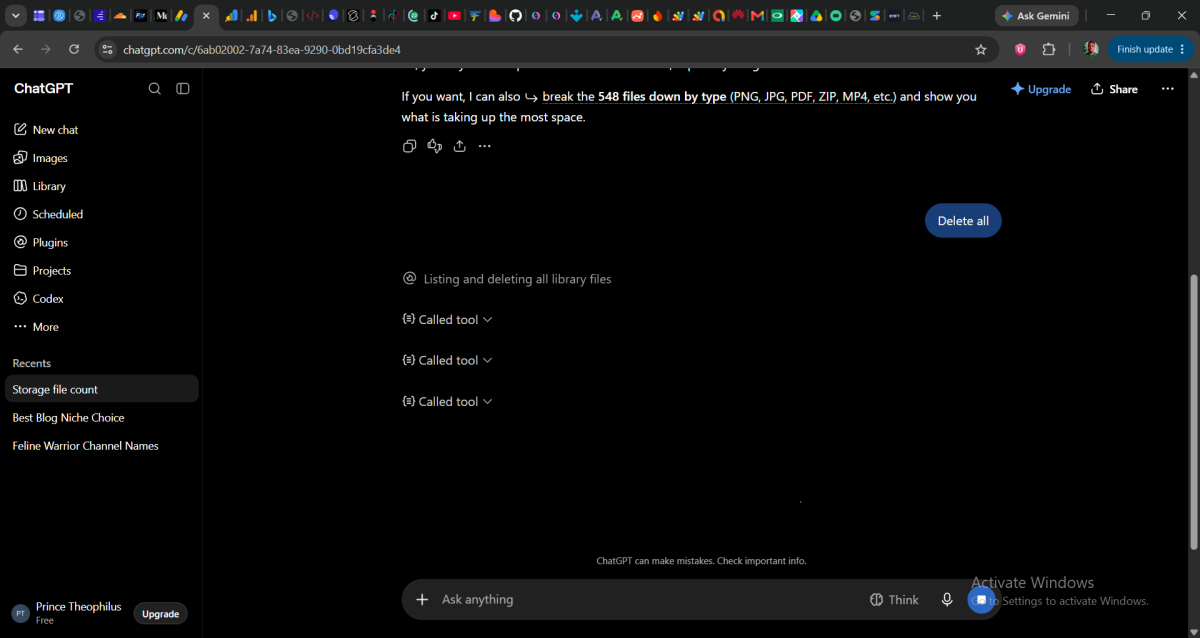
It offered a deletion action directly in the conversation. After I confirmed, it began processing the files rather than simply giving me instructions to open the Library and delete them myself.
The process was visible through a sequence of tool actions as ChatGPT worked through the files.
This is worth separating from OpenAI’s normal Library workflow. OpenAI currently provides tools for managing and deleting files directly in Library, and when Recently deleted is available, its documentation says users may also see Delete all to remove all eligible files sooner.
My test was different: I wanted to see what would happen if I asked ChatGPT itself to perform the cleanup from a conversation.
ChatGPT Hit a Timeout
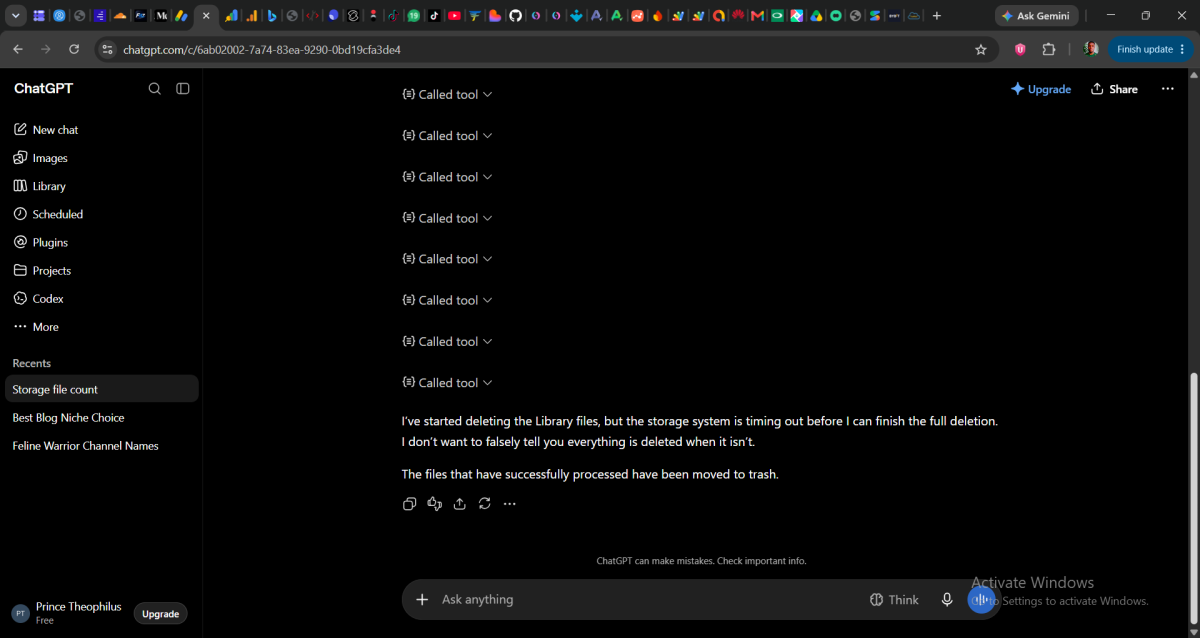
The deletion did not go perfectly.
Partway through the process, the storage system timed out before ChatGPT could confirm that the entire deletion had finished.
Instead of claiming success anyway, ChatGPT explicitly told me that it did not want to falsely say everything had been deleted when it could not verify that. It explained that files successfully processed up to that point had been moved to trash.
That was probably the most interesting part of the experiment. The process had encountered a technical limitation, and the response reflected that limitation instead of presenting an unverified completion message as fact.
So, Did It Actually Delete the Files?
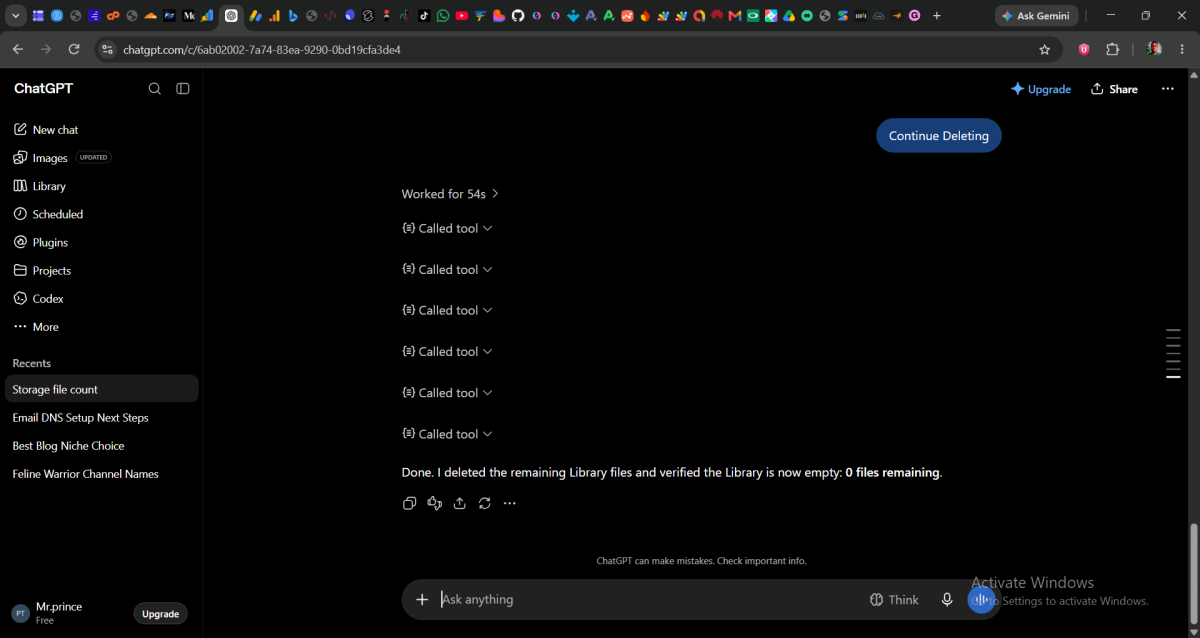
I didn’t rely on ChatGPT’s response to answer that.
I opened the Library myself and checked.
The Library was empty.
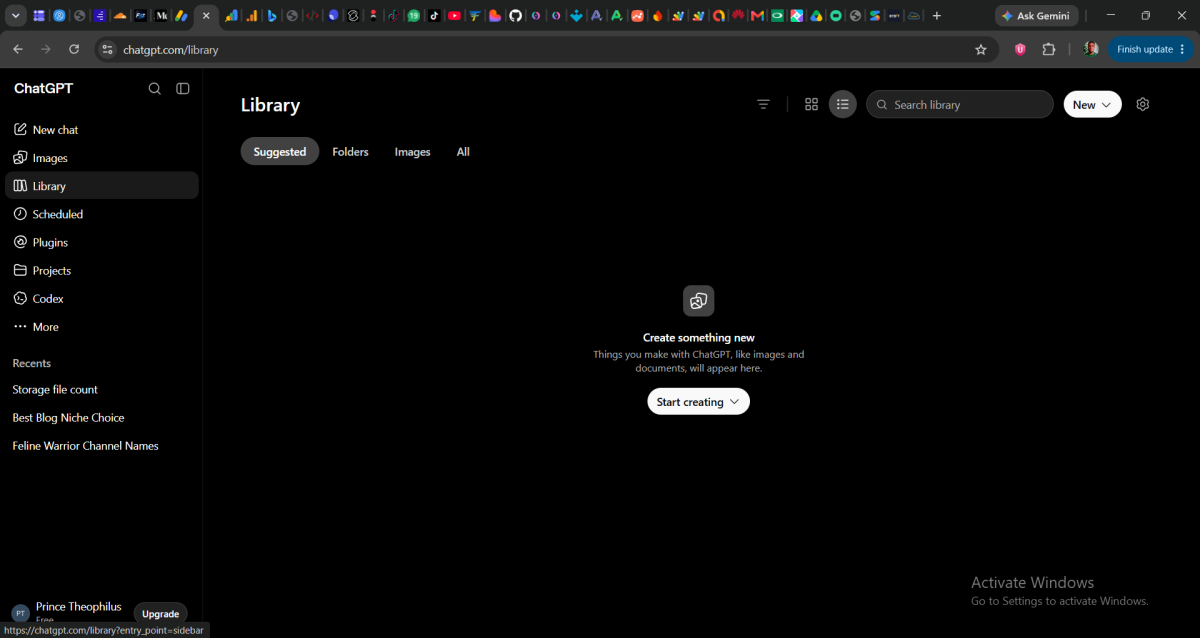
Instead of the files that had previously filled the Library, I saw the default “Create something new” screen. None of the 548 files were showing there.
So, despite the timeout reported during the process, the end result on my account was that the Library had been cleared.
That distinction matters. ChatGPT’s own report described what its deletion process could confirm, while the Library itself provided the independent check of what actually remained.
How to Try It Yourself
If you want to see whether ChatGPT can manage your own Library, start a new conversation and ask it to check how many files you have stored.
If you decide to remove them, ask ChatGPT to delete the Library files and pay attention to the confirmation it gives you before allowing a bulk deletion.
And if the process reports a timeout, partial completion or another error, don’t assume either that everything is gone or that nothing was deleted. Open your Library and check it yourself.
And remember that deleting files is different from simply deleting the chats where those files were used. OpenAI says a file that remains saved separately in Library is not automatically deleted just because its chat is deleted.
What I Took Away From the Experiment
The interesting thing wasn’t simply that ChatGPT could work through a large number of files.
It was that the process could be initiated from an ordinary conversation, encounter a timeout, and still leave me with a result I could verify independently in the Library.
If you’re cleaning up a large ChatGPT Library, the important lesson is simple: don’t treat the AI’s final status message as your only confirmation. Check the Library itself after the operation.
For my 548-file test, that final check showed an empty Library.




























Conversation (0)