


The first time I built something with Google Opal, I kept waiting for the complicated part. The part where it asks me to write a line of code, or set up an API key, or configure something I would need a tutorial to understand.
That part never came. 28 minutes after opening the platform for the first time I had a working content research tool that I could share with anyone via a link.
This guide shows you exactly how to do the same thing — not in theory, but step by step, with a real tool you can actually use when you are done.
If you are not yet clear on what Google Opal is and why it matters, the complete Google Opal beginner’s guide covers all of that before you start building.
Before You Start: What You Need
Getting into Google Opal requires nothing beyond what you almost certainly already have. You need a standard Google account — Gmail, Google Workspace, any Google account works.
Go to opal.google in your browser and click Try Opal. The first time you open it, accept the Google Labs experimental terms.
That is the entire setup process. No installation, no credit card, no configuration. You are inside and ready to build in under two minutes.
One thing worth knowing before you start: Google Opal is available in over 160 countries but it lives inside Google Labs, which means some managed Google Workspace accounts — particularly corporate or school accounts with restricted Lab access — may not have it enabled.
If your work account does not have access, your personal Gmail account will. Use that one for your first build and switch later if needed.
Understanding the Opal Interface in 60 Seconds
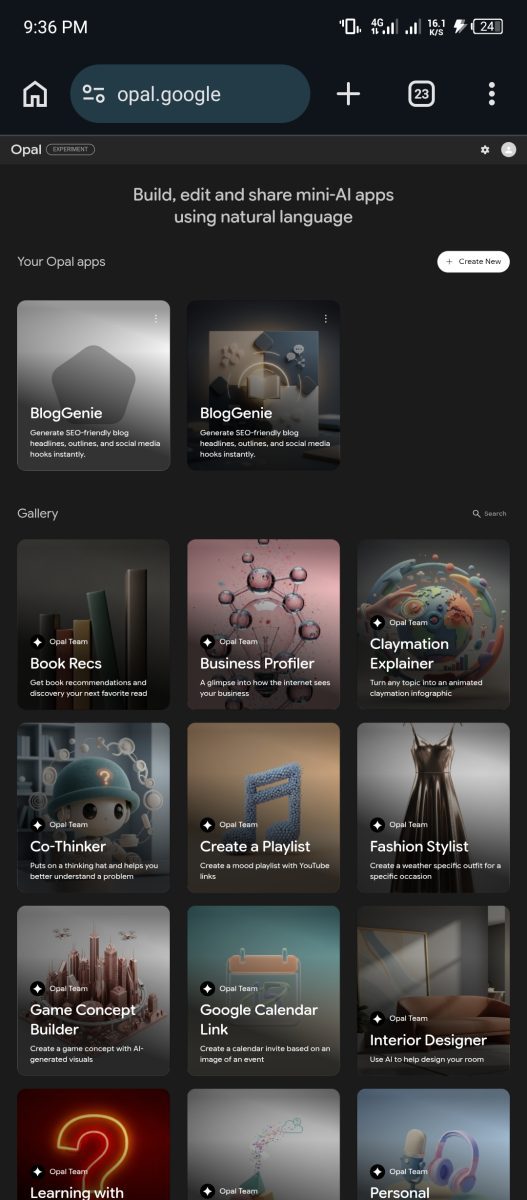
When you land on the Opal homepage you will see three things: a Gallery of example apps on the left, a Create New button at the top, and a workspace area in the center. Before you build anything, spend five minutes in the Gallery.
Click on the Blog Post Writer or the Product Researcher. Open them, run them with a real input, and see what a finished Opal feels like from the user’s side.
This context matters — you will build better when you have seen the destination first.
The Opal editor has two views you will switch between. The Editor view shows your workflow as connected blocks — this is where you build.
The App view shows what users see when they open your published tool — this is your preview and quality check.
On the right side is a sidebar that changes context depending on which block you have selected, showing you the settings and configuration options for that specific step.
At the very bottom of the Editor is the natural language bar — the text input where you describe what you want Opal to build or change. Most of your building happens here.
The three block types you need to know are Input blocks in yellow, Generate blocks in blue, and Output blocks in green.
Every Opal follows the same fundamental structure: something goes in, something processes it, something comes out.
The sophistication of what you build comes from what happens in the Generate steps and how many of them you chain together — not from anything more complicated than that.
Understanding the underlying logic connects to how AI agents work — structured sequences of actions that produce reliable outputs without requiring human input at every step.
Your First Build: A Blog Topic Research Tool
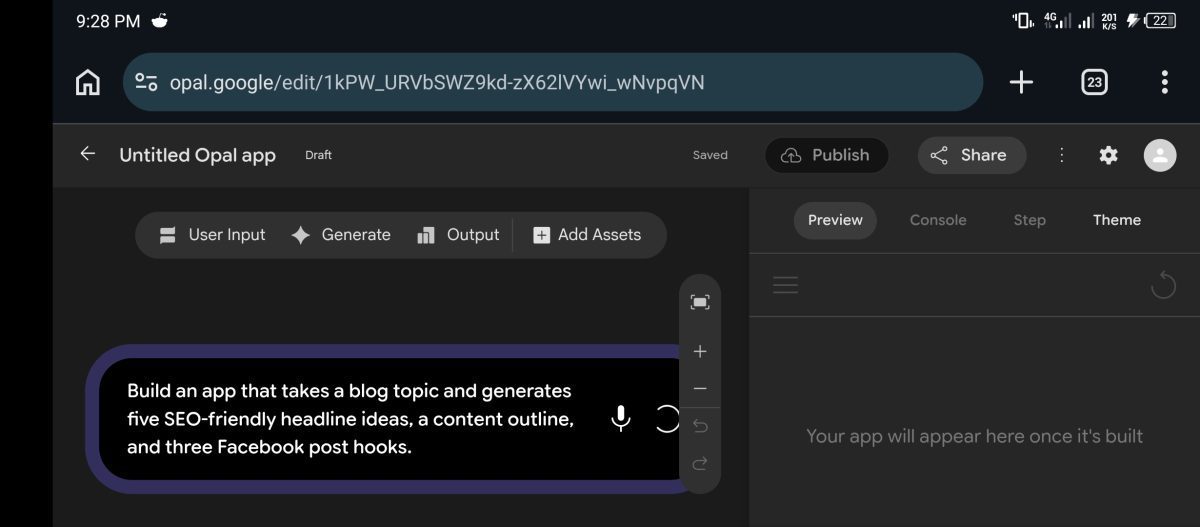
Rather than building something abstract, let us build something genuinely useful. A blog topic research tool that takes a subject area, searches for current trends and popular questions around it, and outputs a structured research brief with five article title ideas and the key points each one should cover.
This is a tool you will actually use — and once you have built it, you will understand the pattern for building anything else.
Step 1: Start With the Natural Language Editor
Click Create New to open a blank Opal. You will see an empty workspace with the natural language bar at the bottom. This is where you describe what you want to build. Type the following prompt into the bar exactly as written:
“Build an app where the user inputs a blog niche or topic area. The app searches for current trending questions and content gaps in that niche, then outputs a research brief with five specific article title ideas, the target audience for each, and three key points each article should cover.”
Hit the arrow to submit. Give Opal 15 to 20 seconds. Watch the workflow build itself in the editor — blocks appearing, connecting, arranging into a logical sequence. This is the moment that surprises most first-time users.
You described something in plain English and a structured multi-step workflow appeared. What Opal just built is not a final product — it is a starting point you are going to refine.
But it is already structurally closer to what you need than anything you could have manually configured in that time.
Step 2: Review and Understand What Opal Built
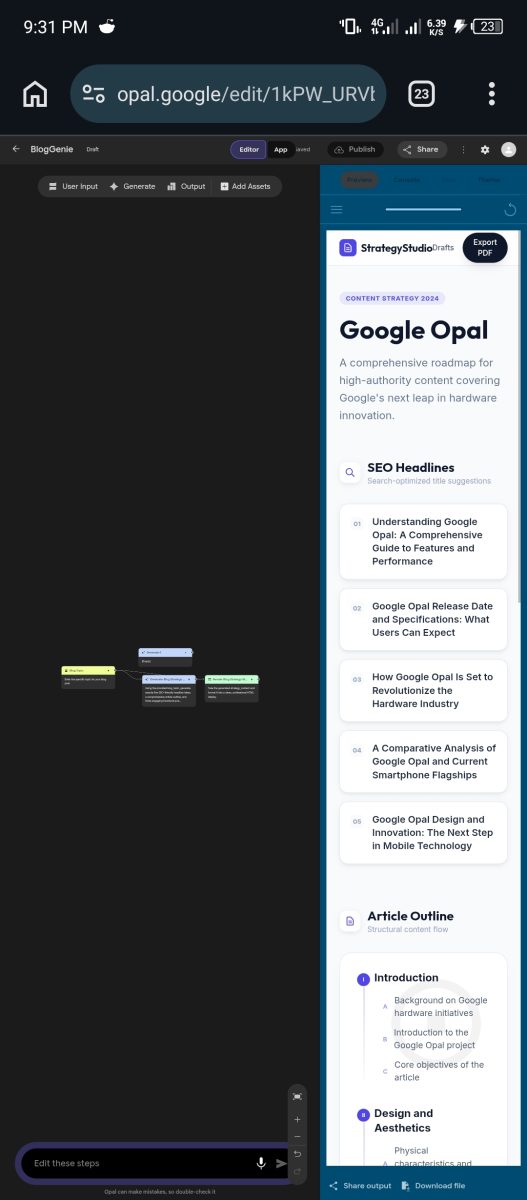
Click on each block in the workflow and read what the sidebar shows you. The Input block tells you what information the app will ask the user for — in this case, their blog niche or topic.
The Generate block or blocks show you the prompts Opal wrote for Gemini — the specific instructions the AI will follow when processing the user’s input.
The Output block shows you how the results will be formatted and delivered.
Reading through these blocks is how you understand what your app is actually going to do before anyone uses it.
It is also how you spot anything that does not match what you intended. At this stage do not change anything yet. Just read.
Familiarise yourself with the structure. Notice how Opal translated your plain English description into specific, structured AI instructions.
That translation is the core of what makes Opal useful — and understanding it helps you write better descriptions the next time you build something.
Step 3: Test in Preview Before Touching Anything
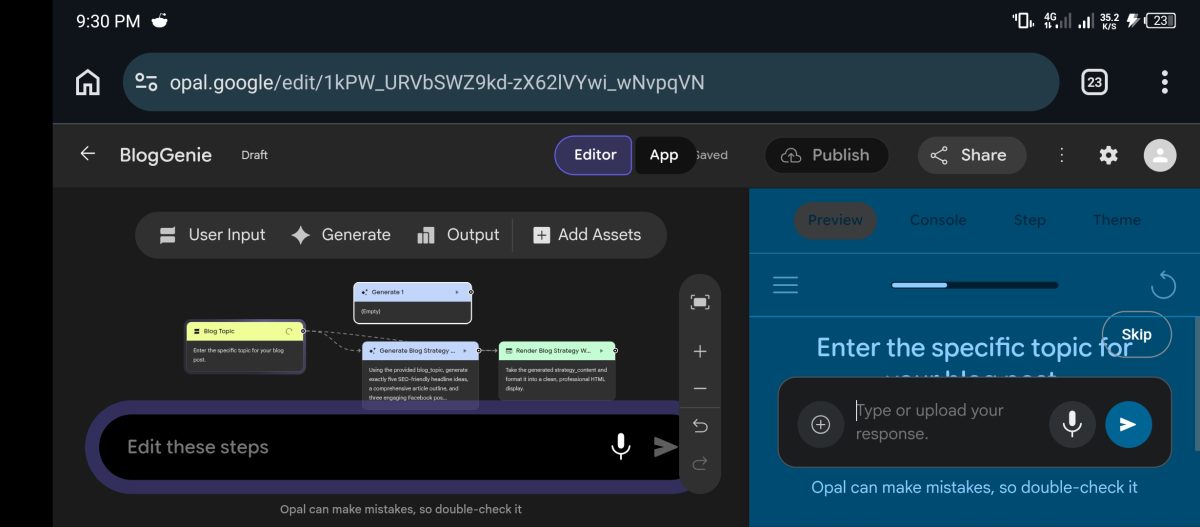
Click the App button at the top right to switch to the App view. You will see what the tool looks like from a user’s perspective — an input field with a label, a Submit or Start button, and a space where the output will appear.
Enter a real input. Type a niche you actually write about or are interested in — “AI tools for small business owners” or “personal finance for beginners in Nigeria” or whatever is genuinely relevant to your work. Hit Start and wait for the output.
Read the output critically. Does it give you five article titles? Are the key points specific and useful or generic and vague? Does the structure match what you asked for? Be honest with yourself here.
The goal is not to get a perfect first output — it is to understand specifically what needs improving so your refinement instructions are targeted rather than general.
Step 4: Refine With the Natural Language Bar
This is where most of the real building happens. Go back to the Editor view and use the natural language bar to improve specific things you noticed in the test.
Here are three refinement prompts based on the most common first-build issues:
If the article titles were too generic, use this prompt:
“Update the title generation step to produce more specific, curiosity-driven titles that would work as YouTube video titles or email subject lines — not standard blog post titles.”
If the key points were vague, use this prompt:
“Update the key points step to include one specific data point or statistic suggestion for each point and one recommended internal linking angle.”
And If the output format was messy, use this prompt:
“Format the output as a clean, structured brief with each article on a new section, bold titles, and numbered key points.”
Each instruction updates the relevant block in the workflow. Test again after each significant change. The pattern is build, test, refine, test again — the same loop that produces good work in any creative discipline.
Most tools reach a genuinely useful state after three to five refinement cycles. The discipline of testing with real inputs rather than hypothetical ones is the same principle behind getting real results from any AI writing tool — the quality of your testing directly determines the quality of what you build.
Step 5: Add a Second Generate Step for More Value
Once the basic research brief is working well, add a second processing step that makes the tool significantly more useful. Type this prompt in the natural language bar:
“Add a step after the research brief that takes the five article titles and generates a recommended publishing sequence — which article to write first based on difficulty and search potential, and a suggested internal linking plan connecting all five articles into a content cluster.”
Opal adds a new Generate block connected to the output of the first one. Test this extended workflow with the same input you used before and compare the outputs.
You now have a two-stage research tool that not only generates article ideas but organises them into a strategic content plan.
That is something a standalone AI prompt cannot do in one shot — it requires the structured multi-step workflow that Opal makes possible without any code.
Step 6: Publish and Share
When you are satisfied with the tool, click the Publish button at the top right. Opal generates a unique shareable link. Copy it.
Test it in a private or incognito browser window to confirm the user experience works exactly as you intended when someone opens it cold without seeing your editor.
If anything feels confusing or unclear from a fresh perspective, go back and adjust the Input block label or the Output formatting before sharing it widely.
The link works for anyone with a Google account. Share it with your team, your clients, your audience, or keep it for your personal workflow.
There is no hosting cost, no maintenance required, and the tool runs on Google’s infrastructure — not your device.
Everything you just built lives in the cloud and will keep working whether you open Opal again tomorrow or six months from now.
Three More Tools Worth Building Today
Now that you understand the pattern — describe, test, refine, publish — here are three more tools that take under thirty minutes each and solve real problems for content creators, freelancers, and small business owners.
A Social Media Content Repurposer
Use this description prompt to build it:
“Build an app where the user pastes a blog post or long article. The app reads the content and outputs three things: a Twitter thread with five tweets, an Instagram caption with a hook and call to action, and a LinkedIn post in a professional but conversational tone. Each output should be in a separate clearly labelled section.”
This tool alone saves content creators 45 minutes per post. Every long-form piece you publish becomes three pieces of social content in under two minutes.
For bloggers building audience across platforms, this is one of the highest ROI tools you can build on Opal.
It directly extends the content strategy covered in how smart bloggers make money beyond AdSense — consistent multi-platform presence without proportionally more work.
A Client Proposal Generator
Use this description prompt to build it:
“Build an app where the user inputs a client name, the type of service being offered, the client’s stated goal, and a budget range. The app generates a professional proposal with an executive summary, a scope of work with three to five deliverables, a timeline, a pricing section with two package options, and a closing paragraph that emphasises the value being delivered.”
For freelancers who write proposals regularly, this tool eliminates two to three hours of work per pitch.
The output needs editing and personalisation — but it gives you a structured, professional starting point in three minutes rather than a blank page staring back at you.
This connects directly to what actually works when making money with AI tools — tools that produce billable-quality deliverables faster, not just tools that look impressive.
A YouTube Video Script Outline Tool
Use this description prompt to build it:
“Build an app where the user inputs a YouTube video topic and their target audience. The app generates a complete video outline with a hook for the first thirty seconds, five main sections with talking points for each, a mid-video engagement prompt, and a closing call to action. Also include three thumbnail concept ideas and five potential video title variations ranked by click potential.”
This tool is particularly useful for faceless channel creators who need to produce scripts consistently and quickly.
It takes the research and structural thinking off your plate so you can focus on the delivery and editing.
If you are building faceless channels alongside this workflow, the full production stack is covered in the SuperGrok and ElevenLabs faceless YouTube blueprint.
Tips That Make Your Opal Builds Significantly Better
Specificity in your initial description is the single biggest factor in how close your first-generation workflow lands to what you need.
The difference between “build a content tool” and the detailed description in the blog research tool above is the difference between something generic and something immediately useful.
Spend an extra two minutes writing a specific description and save twenty minutes of refinement cycles.
Always test with real inputs rather than test inputs. Typing “test” or “example” into your Opal during preview tells you nothing about how it handles actual work.
Type the kind of content you would genuinely run through this tool and evaluate the output against the standard you would hold your own work to.
If Is Your First Time Using Opal
Use the Remix feature in the Gallery before building from scratch on complex tools. Find a Gallery Opal that is close to what you want, remix it, and modify from there.
You get the structural foundation already built and spend your time on the specific customisation that makes it work for your use case.
Google’s own documentation recommends starting with the Gallery and remixing existing Opals as the fastest path to a working first build.
The Blog Post Writer in the Gallery is a particularly good starting point for content-focused tools.
Keep your Generate step prompts focused on one task each.
When you ask a single Generate block to research, write, format, and suggest all at once, the output quality drops because the model is context-switching between different types of tasks.
Chain multiple Generate blocks — one for research, one for writing, one for formatting — and each step does its specific job well.
The output of one block feeds cleanly into the next, and the final result is significantly stronger than what a single overloaded prompt produces.
This is the same structured approach that makes Claude Projects so effective for complex content workflows — each stage has its own context and purpose.
What Happens After You Have Built Your First Tool
The first tool you build with Opal is almost never the one you end up using most.
It is the one that teaches you how the platform works, how to write descriptions that produce useful workflows, and what kinds of tasks benefit most from a structured tool versus a simple AI chat.
That learning compounds fast. The second tool takes less than twenty minutes. The third takes less than fifteen.
By the time you have built five or six Opals you have a personal toolkit of AI-powered tools configured specifically for your work — not generic prompts you recreate from scratch every session, but persistent tools you can open, fill in, and trust to deliver consistent results.
That shift — from using AI reactively to building tools that work for you proactively — is where the real productivity and income gains come from.
The AI tools that actually save time are never the ones you use once and forget.
They are the ones you integrate into your regular workflow until using them becomes faster than not using them.
Google Opal makes that integration easier than any other tool in its category right now — and you are in the window where building that toolkit costs nothing. Go build something real.






















Join the discussion Tap to open the comment form +