
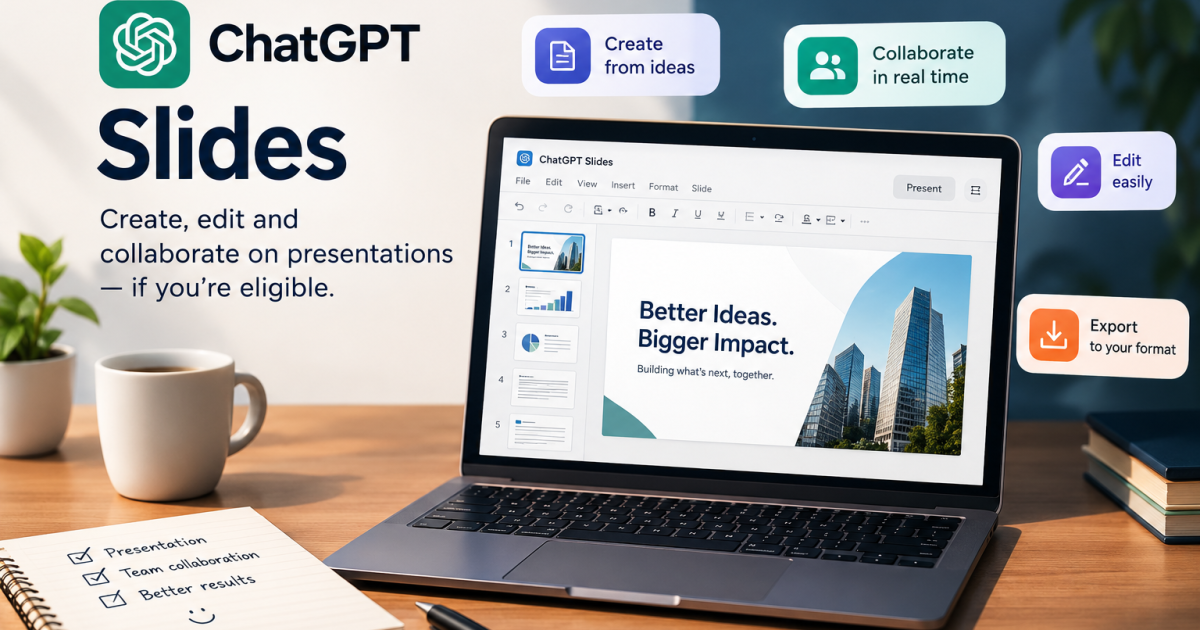
OpenAI has introduced ChatGPT Slides, a feature that lets eligible users create presentations, edit slides, collaborate with teammates and export their work. But there is a catch: the feature is not available to every ChatGPT user.
If you heard about ChatGPT Slides, opened your account and could not find it, that does not automatically mean you did something wrong. OpenAI says the feature is rolling out to eligible Pro, Business and Enterprise users who have access to Space.
There is another detail worth knowing before you spend time searching through ChatGPT’s menus: ChatGPT Slides is not the same thing as ChatGPT for PowerPoint. There is also a separate route for creating presentations through ChatGPT Work and a connected Google Workspace account.
Here is how to understand the differences, what to check if Slides is missing from your account, and which alternative may make more sense for your situation.
What is ChatGPT Slides?
ChatGPT Slides is OpenAI’s presentation-creation and collaboration feature. Instead of asking ChatGPT for an outline and manually transferring the result into presentation software, eligible users can create a deck and continue editing it within the Slides experience.
According to OpenAI’s October 16, 2026 release notes, users can start with a conversation, uploaded files, an outline or an example presentation that helps guide the style and layout.
The documented capabilities include:
- Creating a presentation from instructions, files or an outline.
- Editing text, images, shapes and charts.
- Asking ChatGPT to revise parts of the deck.
- Generating custom images or adding your own.
- Collaborating with teammates in real time and leaving comments.
- Presenting directly from ChatGPT.
- Exporting presentations to PowerPoint, PDF or Google Slides on the web.
Those features could be useful for business proposals, training materials, lesson slides, project updates and pitch decks. They do not remove the need to review the content, check important claims and make sure the final presentation communicates what you intended.
Why ChatGPT Slides may be missing from your account
The first thing to check is eligibility, not whether you have overlooked a button.
OpenAI’s official ChatGPT Slides guide says the feature is rolling out to eligible accounts and is available on Pro, Business and Enterprise plans with Space access. The company also notes that if Slides is not visible, it may not yet be available for your account.
That gives you three practical checks:
- Check your plan. ChatGPT Slides is not documented as a feature available to every Free or Go account. Having a ChatGPT account alone does not establish eligibility.
- Check Space access. The documented Slides experience depends on access to Space. If you use a managed work account, workspace settings may affect what you can access.
- Allow for the rollout. A feature announcement does not mean every eligible account receives the feature at the same time. OpenAI says availability is rolling out.
If you use ChatGPT through an organisation, ask your workspace administrator whether the relevant access is enabled. If your account appears eligible but Slides is still missing, consult the official guide for the current instructions rather than relying on screenshots or menu paths from another user’s account.
How to get started if you have access
OpenAI’s release notes direct users to start by asking ChatGPT in Work to create a presentation in Space. The exact interface you see may depend on your account and environment.
- Open ChatGPT and go to the supported Work experience.
- Ask it to create a presentation in Space.
- Provide a clear brief, your source material or an outline.
- If you have a reference deck, explain which aspects of its style or layout should guide the new presentation.
- Review the slides, correct errors and request revisions before presenting or exporting.
A vague request such as “make a presentation about marketing” leaves too many decisions to the tool. A stronger brief identifies the audience, purpose, length, tone and evidence the deck should use.
For example, you could ask for a 10-slide presentation for small-business owners, explain the decision you want the audience to make, provide the figures or documents to use, and request a final slide containing specific next steps.
Learning to use AI effectively involves more than writing better prompts. Our guide to the AI skills businesses will need beyond prompting explores the broader skills that matter as AI tools take on more practical tasks.
Don’t confuse ChatGPT Slides with ChatGPT for PowerPoint
This distinction is important because you may be able to use one presentation workflow without having access to the other.
ChatGPT Slides is the collaborative presentation experience described above. Its documented rollout requires an eligible Pro, Business or Enterprise account with Space access.
ChatGPT for PowerPoint is a separate add-in that works from within Microsoft PowerPoint. OpenAI’s PowerPoint documentation says it is available globally to Free, Go, Plus, Pro, Business, Enterprise, ChatGPT Edu and K–12 users, subject to plan limits and workspace settings. Free and Go access is limited.
The PowerPoint add-in can help create slides and decks, revise existing presentations and examine a deck’s story or structure. The output remains editable in PowerPoint, although OpenAI says advanced edits and template matching may still need review.
If you already work in PowerPoint and mainly want AI assistance inside that application, the add-in may be the more relevant option. Check its current requirements and install instructions in the official ChatGPT for PowerPoint page.
Can you create presentations with ChatGPT Work instead?
There is another option if your goal is to create a presentation in Google Slides rather than use the new ChatGPT Slides interface.
OpenAI’s ChatGPT Work documentation says Work can create or edit native Google Docs, Sheets and Slides when the relevant Google Workspace app is connected and enabled. Availability depends on your plan, workspace settings, file type and the surface you use.
The general workflow is to connect the appropriate Google Workspace app, open Work, describe the presentation you want, provide the source material and specify the output format. You may be asked to choose an account or file and approve the action.
This is not simply another name for ChatGPT Slides. It is a connected-app workflow, so access to the relevant Google Workspace integration matters. Workspace administrators can also control which apps and actions are available.
Which presentation option should you use?
| What you need | Option to investigate | Important condition |
|---|---|---|
| Create and collaborate on a deck inside ChatGPT | ChatGPT Slides | Eligible Pro, Business or Enterprise account with Space access |
| Work directly inside Microsoft PowerPoint | ChatGPT for PowerPoint | Plan limits and workspace settings apply |
| Create or edit a native Google Slides presentation through a connected app | ChatGPT Work with Google Workspace | The relevant app must be connected and enabled |
These options overlap in purpose, but they are not interchangeable. Choose based on where you want the presentation to live, which account features you can access and whether you need collaboration, direct PowerPoint editing or a connected Google Slides workflow.
What to check before relying on an AI-generated presentation
Getting access to a presentation tool is only the first step. Before sharing the result, check the accuracy of statistics, names, dates and claims. Confirm that charts represent the supplied data correctly, and make sure the visuals support rather than distract from the main point.
Also review confidential information before uploading files, particularly if you are working with customer details, internal business documents or unpublished financial information. Your organisation’s policies and account settings may affect what you are allowed to share.
Finally, do not assume that an exported deck is ready for an important meeting simply because it looks polished. Read it from the audience’s perspective: is the message clear, is the evidence credible, and does each slide earn its place?
You Need To Understand This
If ChatGPT Slides is missing from your account, check your plan and Space access first, then account for the gradual rollout. You may not be doing anything wrong.
If you cannot access Slides, that does not mean you have no presentation workflow available. ChatGPT for PowerPoint and ChatGPT Work with a connected Google Workspace app are separate options, each with its own requirements.
The most useful next step is to identify the application you want to work in and check its official access requirements. That is more reliable than following a tutorial that assumes every ChatGPT user sees the same features.






















Conversation (0)