

I want to tell you about a moment that genuinely surprised me.
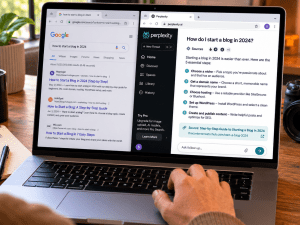
I had just published a new post on this blog — the Perplexity AI vs Google comparison, so I was curious about something, and I opened Google NotebookLM, which I had been hearing about but never properly explored, pasted the URL of my own article into it as a source, and watched what happened next.
Within about sixty seconds, NotebookLM had read the entire article, named the notebook after it automatically, and generated a full summary in the Chat tab — correctly identifying the key arguments, the research citations, the practical recommendations, and the overall framing of the piece. It understood my article better than most readers skim it.
Then I clicked into the Studio tab and saw what else it could do. Audio overview. Video overview. Slide deck. Mind map. Flashcards. Quiz. Infographic. Data table. All of it, generated from a single URL I had pasted in. All of it free.
That was the moment I understood why people who discover NotebookLM properly become almost evangelical about it. It is not a gimmick. It is genuinely one of the most capable free AI tools available right now — and it is one that most people have either never heard of or have heard of but never actually sat down with.
This post is the guide I wish I had found the first time I heard about it. How it actually works, what each feature genuinely does, what the experience of using it feels like from someone who has gone through it properly, and who it is and is not worth using for. If you want to know how to use Google NotebookLM, this is where to start.
What Google NotebookLM Actually Is
NotebookLM is Google’s AI-powered research assistant. It was built to solve a specific problem that ChatGPT and other general AI tools do not address particularly well: the overloaded reader problem. Students, researchers, content creators, and professionals are drowning in PDFs, reports, articles, and reference documents — and most AI tools either ignore all of that material or struggle to reason across multiple large documents simultaneously.
NotebookLM works differently. You upload your own sources — documents, PDFs, websites, YouTube videos, Google Drive files, or copied text — and NotebookLM creates an AI that is grounded exclusively in those sources. It does not draw on its general training data or the wider internet when answering your questions. It only uses what you gave it. This is why, unlike most AI tools, NotebookLM does not hallucinate. It has nothing to hallucinate from beyond what you provided, and it will tell you clearly when a question falls outside the scope of your uploaded material.
The free tier is genuinely, fully usable. You get 100 notebooks, 50 sources per notebook, and up to 500,000 words per source. No credit card. No trial period. And No feature locked behind a paywall that makes the free version feel deliberately broken. Access it at notebooklm.google.com with any Google account.
Getting Started: The First Time You Open It
The first screen you see when you sign in is a welcome notice that sets an important expectation immediately. NotebookLM tells you directly that your data is not used to train the model unless you provide feedback. Your uploads, your queries, and the responses you get all stay within your own account. This is a meaningful privacy commitment from Google and it matters for anyone who wants to upload work-in-progress documents, client material, or sensitive research notes.
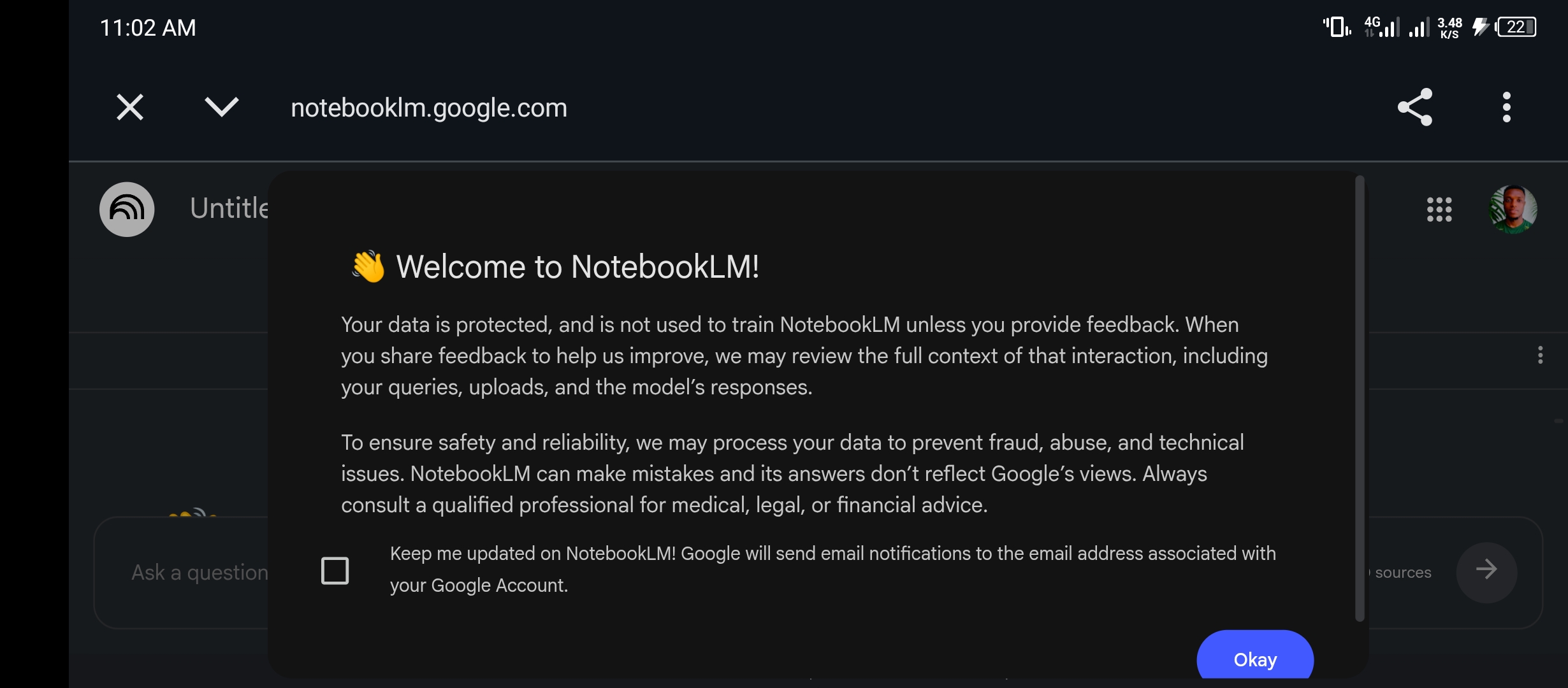
Click okay and you land on the home dashboard. The interface is clean and minimal. There is a button to create a new notebook and, if you are not brand new, your existing notebooks arranged as cards. There is also a “Featured notebooks” section showing curated public notebooks from organisations like The Atlantic, Our World in Data, and the Royal Society with Google Arts — which gives you an immediate sense of the range of things people are using this for.


Click “Create new” and you are inside a blank notebook. This is where the real work begins.
Adding Sources: The Most Important Step
NotebookLM is only as useful as the sources you give it. Understanding the different ways you can add material — and when to use each one — is the single most important thing to grasp before you start.

The upload panel gives you several options. Upload files handles PDFs, Word documents, images, audio files, and more. The Websites button lets you paste in any publicly accessible URL and NotebookLM will import the visible text from that page. The Drive button connects directly to your Google Drive so you can pull in Docs, Slides, or Sheets without downloading anything first. Copied text lets you paste in material directly if you do not have a file or URL handy.

Adding a Website as a Source
This is the option I used for my own test. I clicked Websites and pasted in the URL of my Perplexity AI vs Google article. The URL input panel shows clear instructions: you can add multiple URLs at once by separating them with a space or a new line, only public pages are supported, and paid articles behind paywalls will not import.
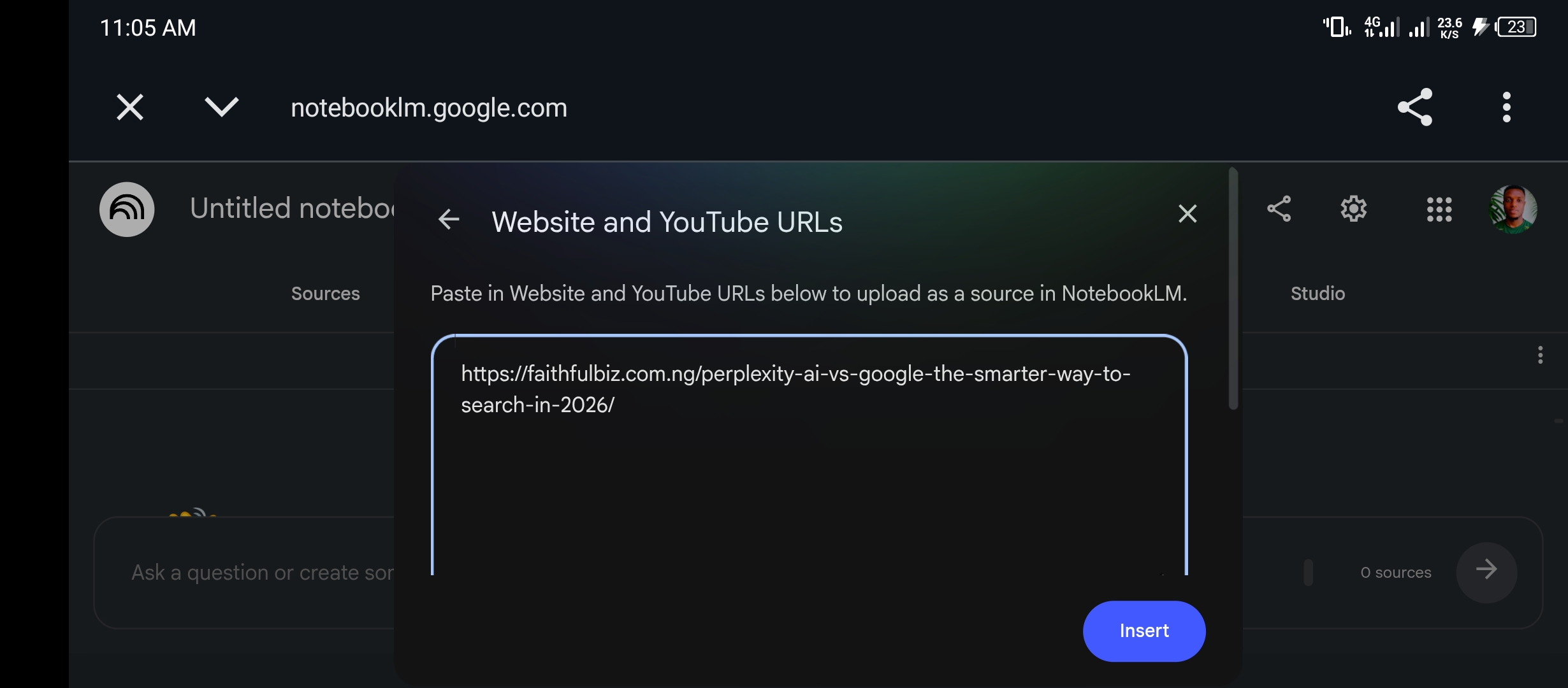

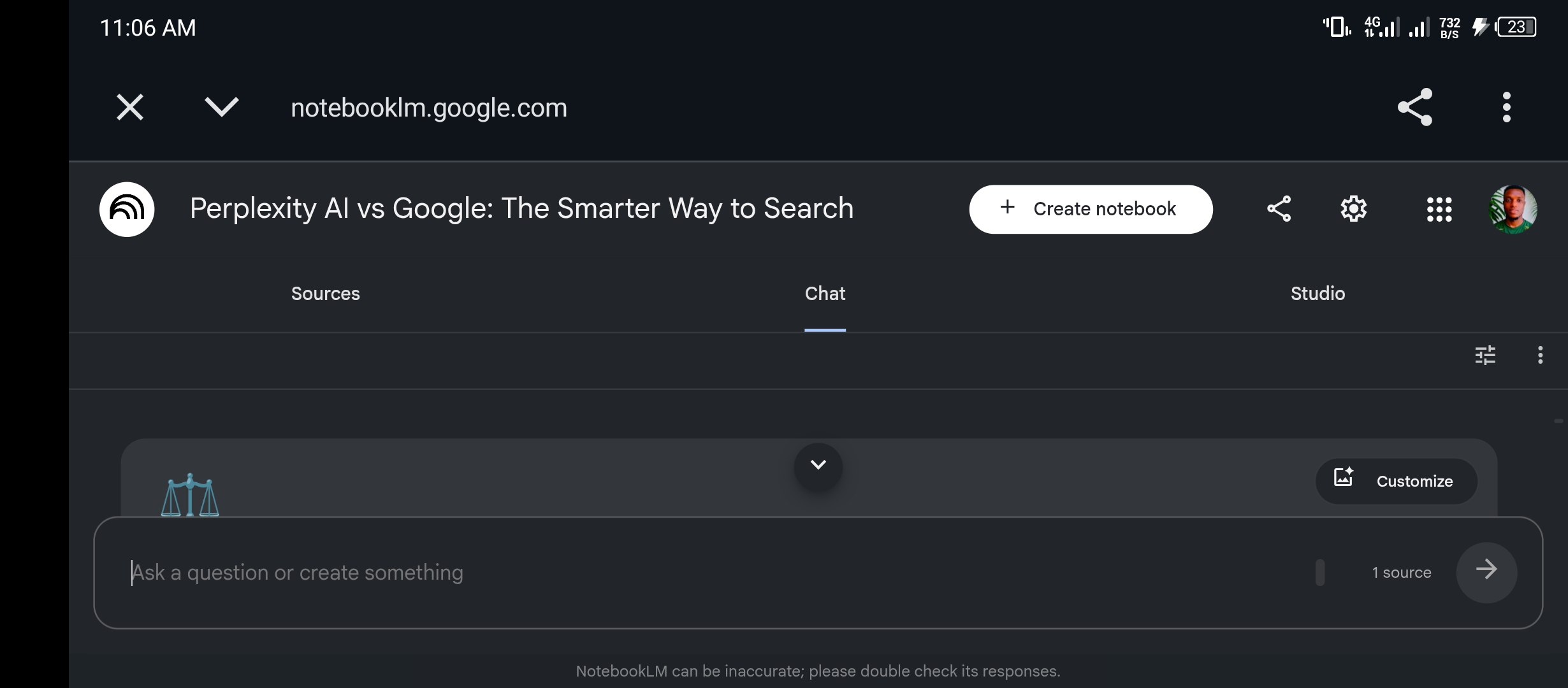
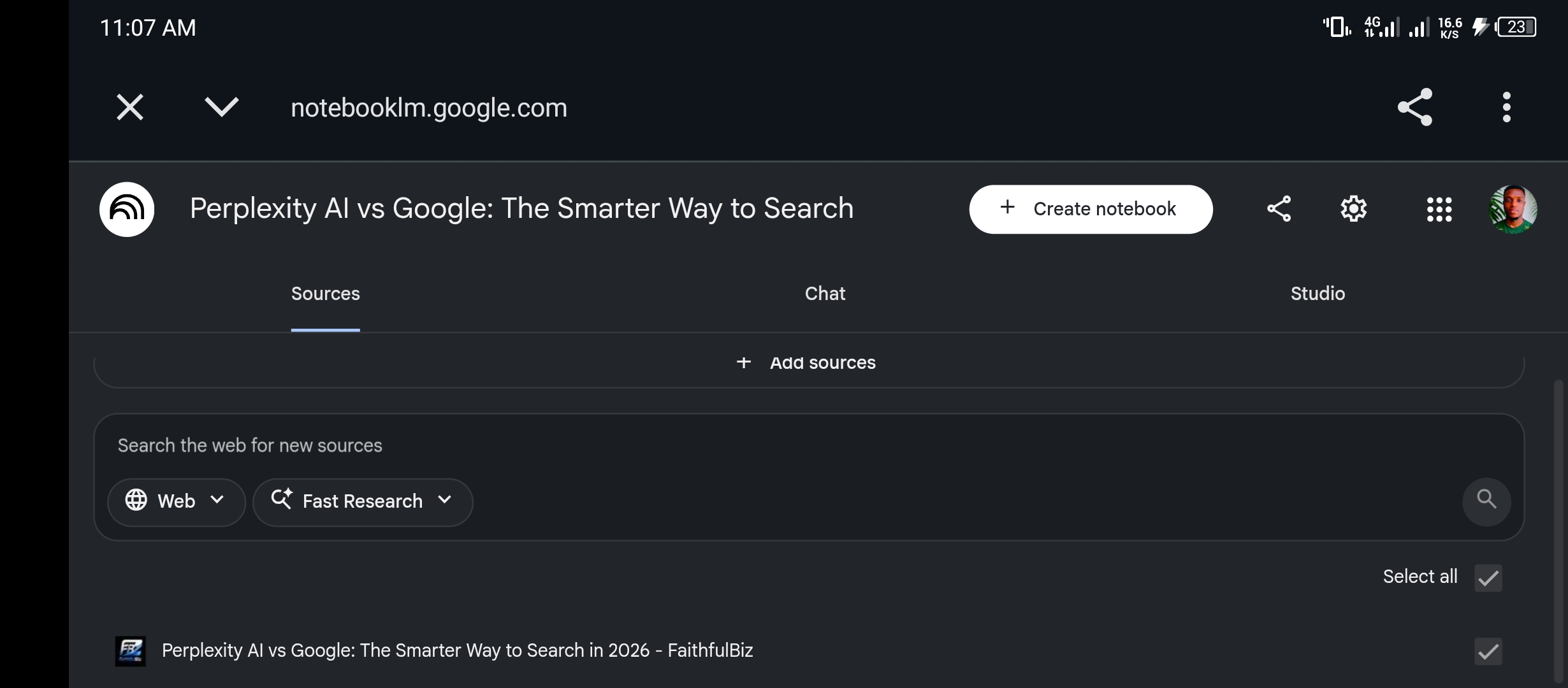
Click Insert and within seconds the content is loaded. NotebookLM reads the entire page and prepares it as a source your notebook can reason over. It even names the notebook automatically based on the content — my notebook was titled “Perplexity AI vs Google: The Smarter Way to Search” without me typing a single character.
The Chat Tab: Your AI That Only Knows Your Sources
Once your sources are loaded, you land in the Chat tab. This is where you ask questions, and this is where NotebookLM’s core advantage becomes immediately obvious.
The moment I opened the Chat tab after loading my article, NotebookLM had already generated an auto-summary — a structured overview of exactly what the source contained. It correctly identified that the article compared Perplexity AI and Google, highlighted the key arguments about each platform’s strengths, noted the research data points cited, and concluded with the recommendation about routing different query types to different tools.
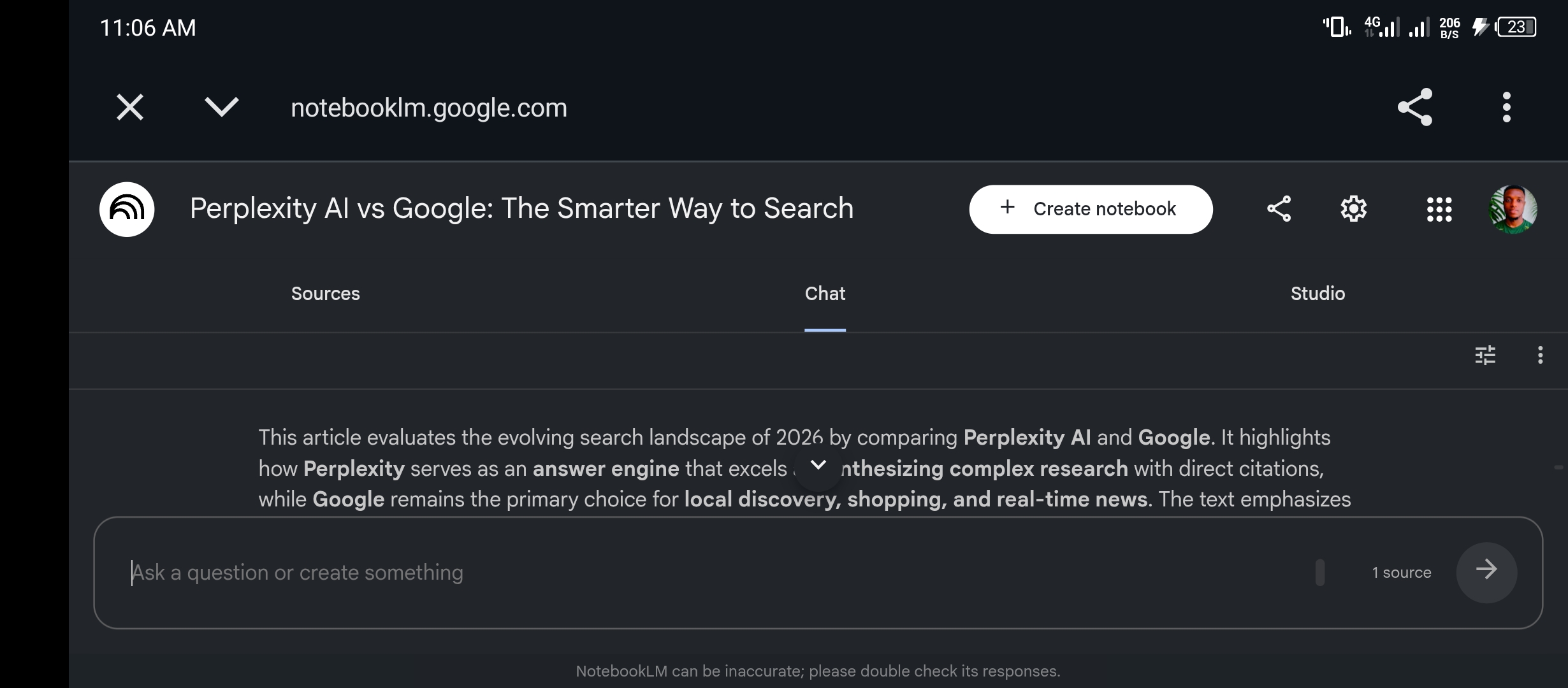

From here, you can ask anything about your sources. “What are the three strongest arguments in this document?” “Summarise the section on limitations.” “What does this source say about pricing?” “Are there any contradictions between these two documents?” Every answer is grounded in what you uploaded and comes with inline citations pointing back to the exact passage in the source where the information came from. That citation feature is what makes NotebookLM genuinely trustworthy in a way that most AI tools are not — you can verify every claim it makes.
Why This Matters Practically
Most AI tools, when asked about a document you upload, will blend what is in the document with what they already know from training — sometimes helpful, often confusing, occasional, incorrect. NotebookLM does not do this. It answers only from what you provided. This means that if a fact is wrong in your source document, NotebookLM will reflect that wrongness without adding more errors on top of it. You stay in control of the knowledge base.
For bloggers, this means you can load a research report, a competitor’s article, or a long PDF you need to reference, and have a focused conversation with it rather than reading every word yourself. While for students, you can load your course materials and ask NotebookLM to generate exam questions from them. And for freelancers, you can upload a client brief and ask NotebookLM to identify the key deliverables, flag any ambiguities, and suggest questions to ask before the project starts.
The Sources Tab: Managing What You Have Added
The Sources tab gives you a clean view of everything you have uploaded to a notebook. Each source is listed with its title, type, and a checkbox so you can select which sources to include when asking questions in the Chat tab. This selective sourcing is one of the most practically useful features of the tool — if you have ten documents loaded but want to ask a question that is only relevant to three of them, you can scope the chat to those three sources specifically.
The Studio Tab: Where NotebookLM Becomes Something Different
If the Chat tab is the useful part of NotebookLM, the Studio tab is the genuinely surprising part. This is where the tool transforms your uploaded sources into a range of different output formats — and the breadth of what is available on the free tier is something most people do not expect until they see it.
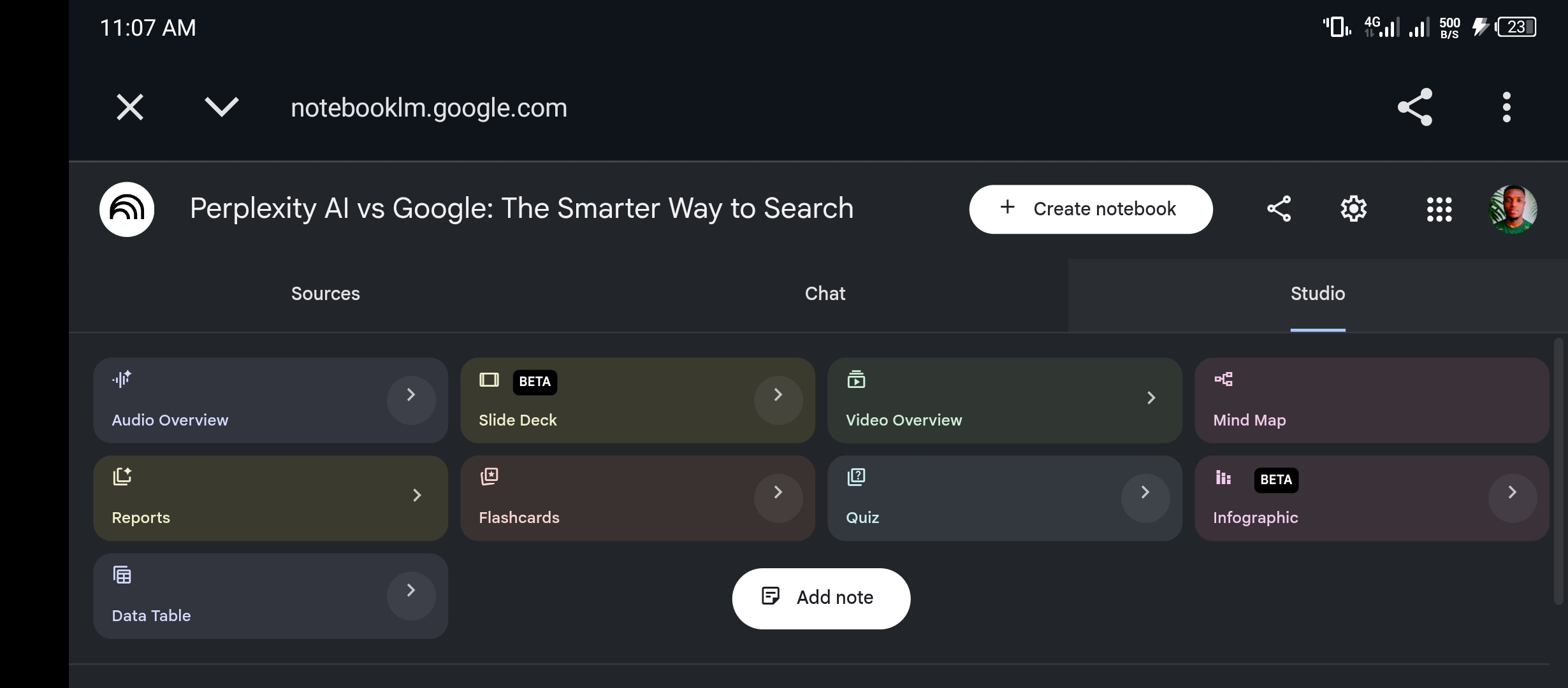
Here is what each option does and where it is most useful.
Audio Overview — The Feature That Made NotebookLM Viral
This is the feature that put NotebookLM on the map for most people, and the reality lives up to the reputation. Click Audio Overview and NotebookLM generates a podcast-style conversation between two AI hosts — one male, one female — who discuss the content of your sources as if they are recording an episode about it. They do not just read the text aloud. They converse. And They ask each other questions. They express genuine-sounding enthusiasm about interesting findings. They use filler words, natural pauses, and the kind of back-and-forth rhythm that makes audio feel human rather than robotic.
practical use cases
I clicked Generate on the Audio Overview for my Perplexity AI vs Google article and saw the generating screen appear — “Come back in a few minutes.” It took about three minutes to produce a roughly twelve-minute audio discussion of a post that takes about eight minutes to read. When I listened to it, I was genuinely surprised by the quality. The hosts correctly identified the core argument, covered the key data points in a natural sequence, and even picked up on the nuanced conclusion about routing different query types to different tools — the kind of thing you would expect a human to miss if they were quickly summarising someone else’s work.
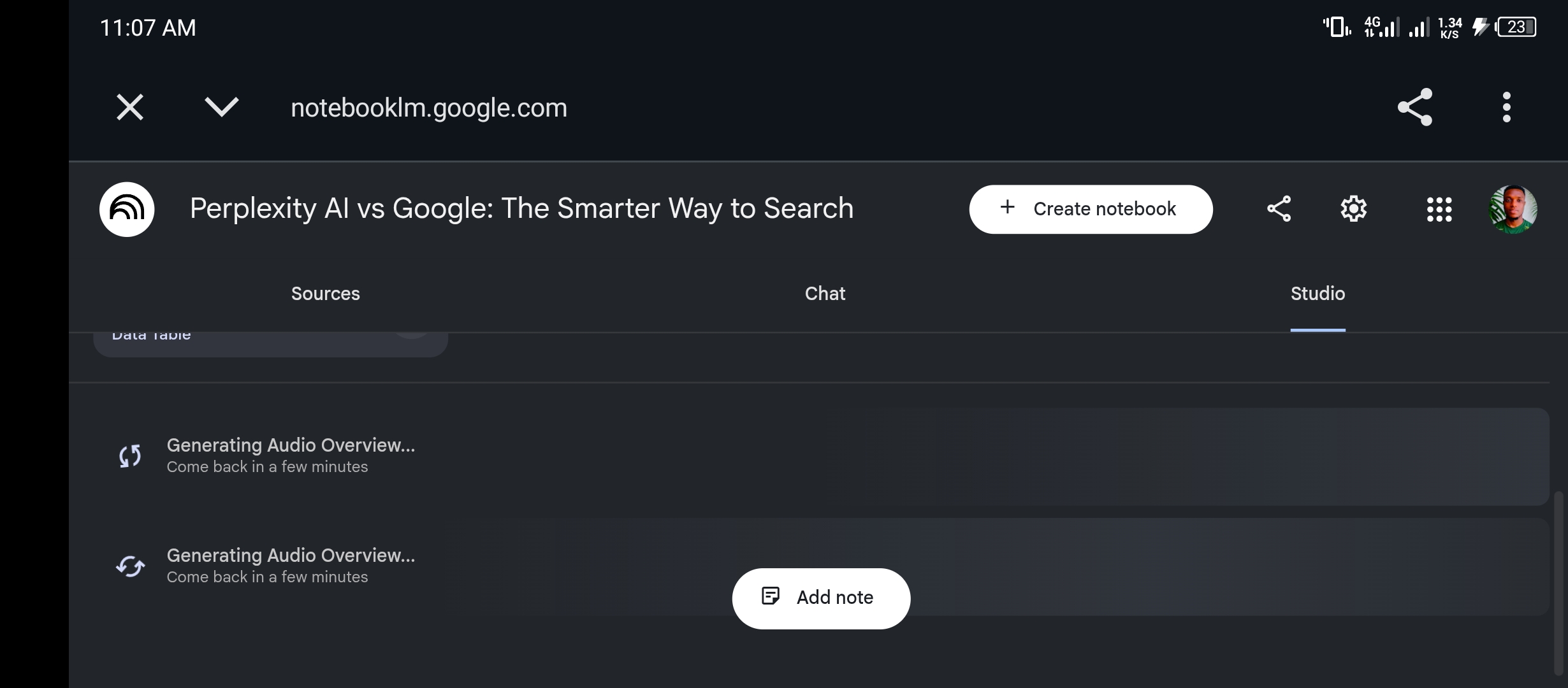
As of September 2025, the Audio Overview feature expanded significantly. You can now choose between four formats: Deep Dive (a thorough, comprehensive discussion), Brief (a shorter summary version), Critique (the hosts evaluate and push back on the material), and Debate (the hosts argue different perspectives from within the source). You can also customise the tone — more formal or more casual — and set the length preference. Audio is available in over 80 languages, which makes this tool accessible far beyond the English-speaking audience it originally targeted.
The practical use cases are wide. Listen to a research paper during your commute. Get a podcast-style breakdown of a long business report before a meeting. Turn your own blog post into shareable audio content. Have NotebookLM create a discussion of your study materials while you cook or exercise. Over 2 million people are already using this specific feature, and once you have experienced it with your own material, it is not hard to understand why.
Mind Map — Visual Thinking Made Automatic
The Mind Map feature reads your sources and generates a visual concept map showing the key ideas and how they connect to each other. For research-heavy work, this is valuable for getting a structural overview of a complex topic before you start engaging with the detail. For bloggers and content creators, it is a fast way to generate an outline of a topic from reference material rather than building one from scratch.
Flashcards and Quiz — Learning Tools Built In
NotebookLM generates flashcards and quiz questions directly from your uploaded sources. For students, this is immediately and obviously useful — upload your lecture notes, generate a set of flashcards, and study from material that is grounded in exactly what you were taught rather than generic internet knowledge about the topic. The quiz function creates multiple-choice and open-ended questions that test comprehension of the specific content you uploaded.
I generated a quiz from my own article to test this. The questions were specific to the arguments in the piece — not generic questions about AI tools, but questions about the particular data points and recommendations I had made. That specificity is what separates this from any generic quiz generator.
Slide Deck — Presentations From Your Research
Still in beta as of 2026, the Slide Deck feature generates a structured presentation from your source material. For anyone who regularly has to present research findings, client reports, or educational content, this compresses what is typically an hour of slide-building into a few minutes. The output requires editing and design refinement, but the structure and content extraction are solid enough to work from as a starting point.
Video Overview, Infographic, Reports, and Data Table
Video Overview generates a short visual video summary of your content — useful for creating shareable social content from research material. Infographic produces a visual summary of key information. Reports creates a structured written summary in a specific format you can specify. Data Table extracts structured data from your sources into a table format — particularly useful for documents that contain comparative information or statistics spread across multiple sections.
What Real Users Are Saying
I want to be honest about what the broader community experience looks like, because it fills in parts of the picture that my own testing does not cover on its own.
The Audio Overview is consistently described as the feature that converts sceptics. One XDA Developers writer described going from dismissing the hype to being genuinely impressed: the hosts “sound natural, seemingly react to what the other says, and mimic human speech by including pauses, filler words like ‘huh,’ and even the occasional stutter.” A user profiled in a later piece described listening to an Audio Overview of a 30-page behavioural economics PDF while making dinner and understanding the material better than they had after weeks of trying to read it directly.
survey
A 2025 user experience survey found that 72 percent of participants preferred NotebookLM Audio Overviews over silent reading for initial familiarisation with new material. That figure is striking because it suggests the audio format is not just a novelty — it is genuinely a more effective way to absorb certain types of content for most people.
Academic reviewers
Academic reviewers are more measured. The Effortless Academic noted that the Audio Overview and other Studio outputs are most valuable when approaching a topic that is entirely new to you. For experienced researchers who need specific answers to questions that may not even be the main focus of the papers they uploaded, the chat function is far more useful than the Studio outputs. That distinction — broad overview vs. deep specific inquiry — maps usefully onto how different people will get the most from the tool.
The hallucination point
The hallucination point comes up repeatedly and consistently in a positive direction. Because NotebookLM only draws from what you upload, users report almost zero hallucination in their experience with the tool. “NotebookLM only uses your uploaded sources, so there’s no hallucination,” one comprehensive guide noted. This is the feature that makes it genuinely trustworthy for professional and academic work in a way that general AI tools cannot match.
The Honest Limitations Worth Knowing
No tool is perfect, and NotebookLM has real limitations that are worth understanding before you build it into your workflow.
The grounding in your sources is both the strength and the ceiling. NotebookLM can only tell you what is in what you gave it. If your sources are incomplete, biased, or outdated, the answers and outputs will reflect that. It will not add outside context or flag that something important is missing from your sources — you have to bring the judgment about whether your source selection is comprehensive enough for the question you are asking.
The Audio Overview is generated, not curated. The hosts do an impressive job synthesising the material, but they can occasionally miss nuanced arguments or de-emphasise points that are actually central to the source’s value. For high-stakes professional use, treat the audio as a starting point for engagement with the material, not a replacement for reading the original.
Some Studio features are still in beta. The Slide Deck and Infographic outputs in particular are impressive but not always publication-ready. Expect to edit and refine rather than use the output directly.
The free tier, while generous, has a cap on source size and notebook count that will eventually constrain heavy users. NotebookLM Plus, which gives you 300 sources per notebook and additional features, costs more than the free tier but is worth knowing about if your use grows beyond what the free plan covers.
Who Should Actually Use NotebookLM
The tool is valuable for a wider range of people than its name and initial positioning might suggest.
Students at any level can use it to turn course materials into study tools — audio overviews, flashcards, quizzes, and structured chat sessions grounded in their specific curriculum rather than generic internet knowledge.
Bloggers and content creators can use it to research faster — load ten reference articles, ask NotebookLM to synthesise the key arguments across all of them, identify where sources agree and disagree, and use that as the basis for an original piece rather than reading each article in full.
Freelancers can use it to process client briefs, research packages, and reference documents more efficiently. A virtual assistant can load a client’s business documents and have a capable AI that speaks only from that material. A copywriter can load competitor research and ask structured questions about positioning gaps.
Small business owners can load their own product documentation, FAQ pages, and support history — then use the Chat function to identify what questions customers ask most frequently, what information is missing from their current materials, and how to improve their customer communication.
If you are building the free AI stack we covered in the previous post on free AI tools that are actually free in 2026, NotebookLM belongs in it as your dedicated research and document processing layer — sitting alongside Claude for writing, Perplexity for live web research, and ChatGPT for general utility.
How to Get the Most Out of It From Day One
The single most effective thing you can do when you first open NotebookLM is to load sources that relate to a real, current project rather than experimenting with random documents. The tool becomes meaningful the moment it is working on something that matters to you — a report you need to understand, an article you are researching, a study guide you need to build.
Start with one notebook, one focused set of sources, and use the Chat tab to ask questions that you genuinely want answers to. Notice how the citations work and click through to verify a few of them — that habit builds justified confidence in the outputs over time.
Explore the Studio tab
Once you have the Chat function working well, explore the Studio tab. Generate an Audio Overview of your source material and listen to it while doing something else. Then come back to the Chat tab with the questions that came up while you were listening. That learning loop — passive audio overview followed by focused chat session — is the workflow that users consistently report as the most effective combination NotebookLM offers.
Access it at notebooklm.google.com — free, no credit card, works with any Google account you already have.
If you want to understand how NotebookLM fits into the broader picture of what is worth building your AI workflow around in 2026, this guide to AI tools that actually deliver results connects the dots across the full stack. And if you want to understand the underlying concepts that make you better at using every AI tool — including why NotebookLM’s source-grounding architecture is so significant — these are the AI concepts most people skip but need to understand first.
Most tools in the AI space ask you to trust them with your work. NotebookLM does something different — it puts your work at the centre of what it does and builds everything around it. For anyone dealing with more information than they can comfortably process alone, that is not a small thing. It is the whole point.













Join the discussion Tap to open the comment form +